Working in Ai8
From your invitation email to a submitted assignment: notebooks, code that keeps running when you leave, the agent, and what happens at a deadline. Not in a course? Everything except the coursework chapters applies to you too.
What Ai8 gives you
Ai8 is a workspace for Jupyter notebooks that runs in your browser, with nothing to install. Three things make it more than a notebook on your laptop.
Code that keeps running when you leave
Press Run and close your laptop. Your code carries on in your runtime on the server and the output is saved as it prints. A runtime nobody is using stops by itself, so it does not use up your compute.
How it worksAn AI agent that works in your project
Ask in plain words. The agent reads your files, explains errors and methods, writes and edits notebook cells, and runs code. It asks before each change.
Meet the agentLLM API access
Call large language models from your own notebooks and scripts, with no API keys to manage. If your plan includes it, use Ai8’s small Python package or a plain HTTP endpoint, with nothing to set up.
Call a model from your codeQuick start
Seven steps take you from the invitation to your first submitted piece of work. Tick them off as you go; this browser remembers where you got to.
Home and projects
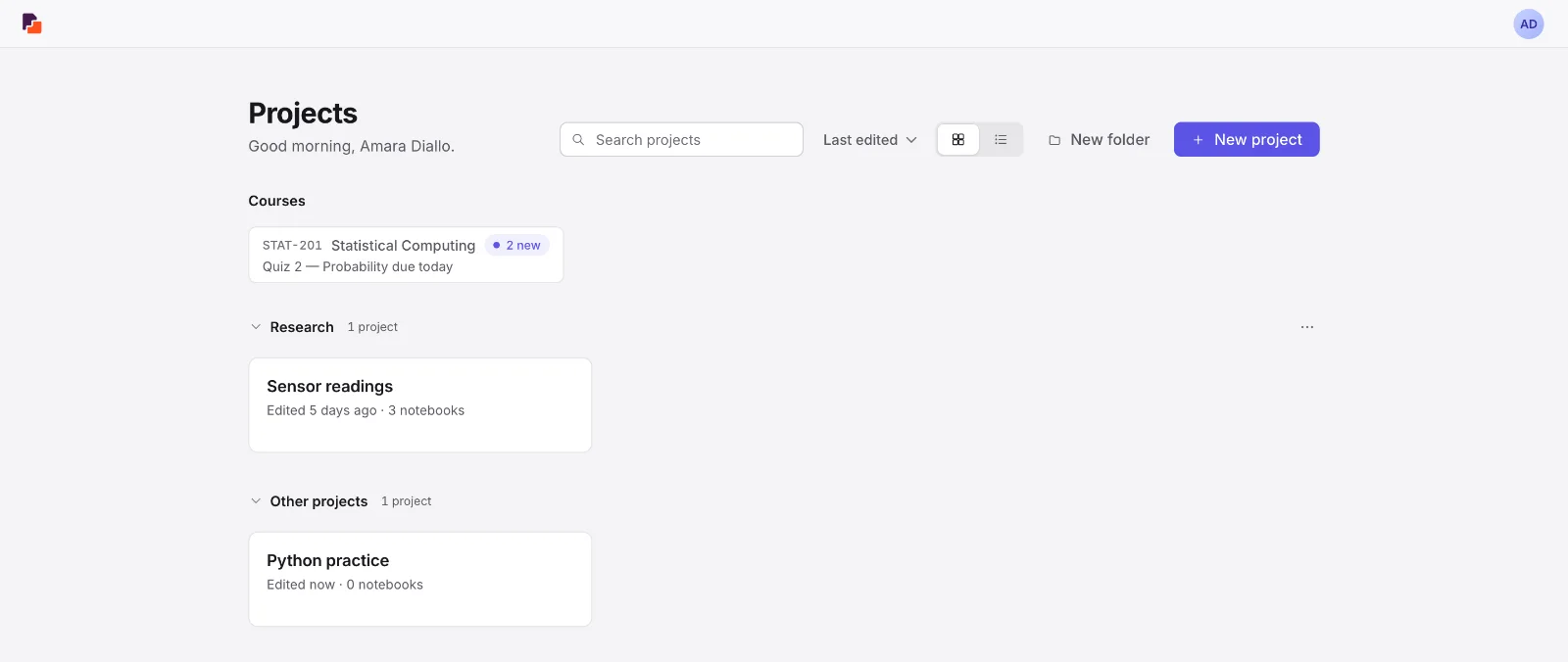
Home is the first page after you sign in. It lists every project you can open, and your courses sit in a row above them.
Projects
A project holds your files, your notebooks and its own runtime. Press New project, give it a name, and review its environment and compute choices. Your workspace may preselect them; you can change them before creating. Its files start empty, and compute starts only when you need it. Coursework arrives as projects too: when you start an assignment, your copy appears here under that course’s heading.
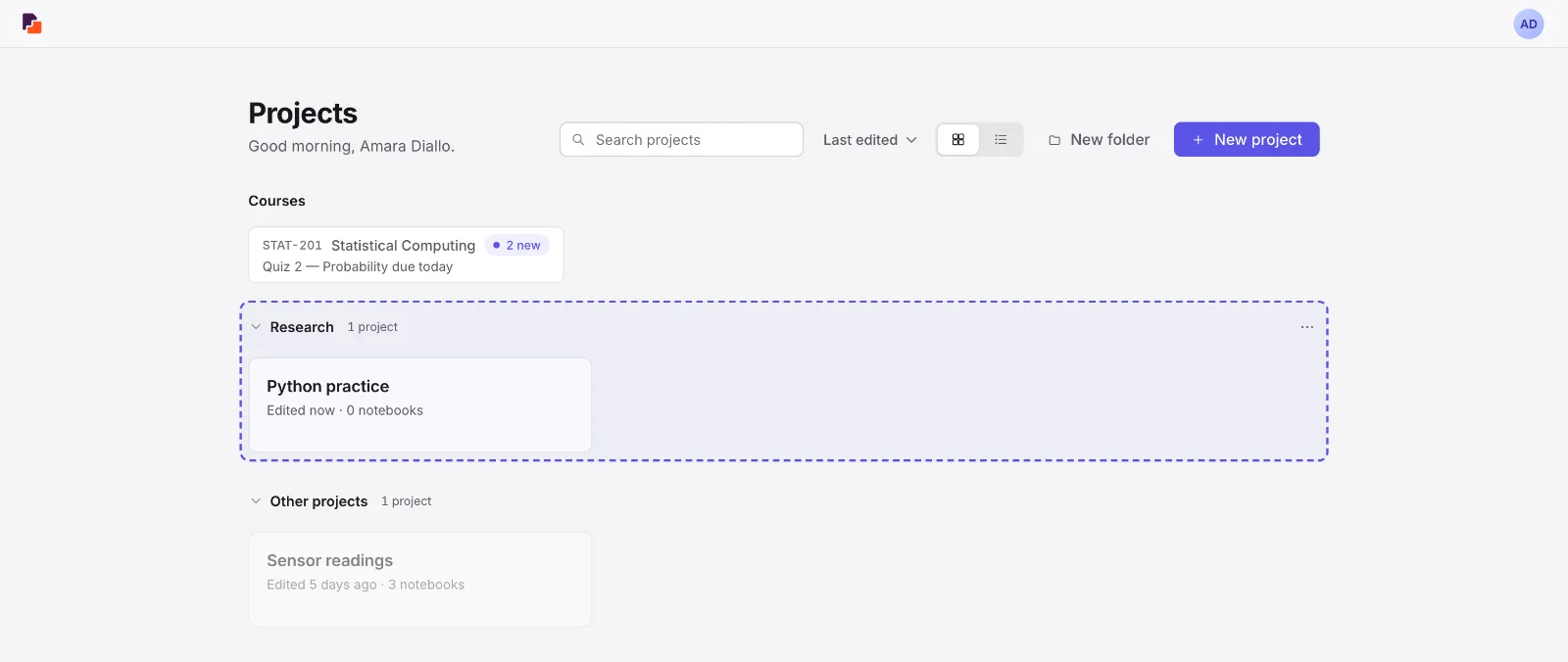
Drag projects into folders
Folders keep your own Home tidy. Nobody else sees them, and deleting a folder never deletes a project.
Press New folder and give it a name.
Drag a project’s card onto the folder. The folder lights up when it will take it. In the list view you can drag the row, and a collapsed folder takes it on its heading.
To take it out again, drag it onto Other projects, or open the project’s ⋯ menu and choose Remove from folder.
Cards or rows
The two-icon control beside the sort menu switches between cards and a compact list. Your choice is remembered in this browser.
Your profile and settings
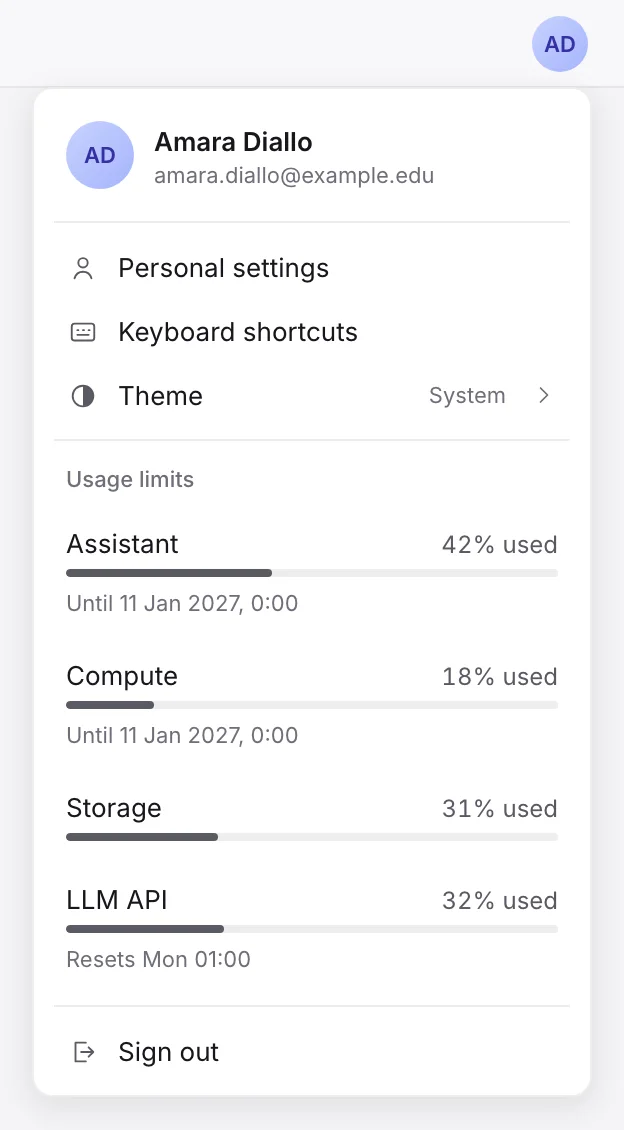
Click your avatar in the top right corner to open the account menu. It shows your usage limits, the theme switch and Personal settings, where you can change your display name, add a profile photo, reset your password and set preferences.
The workspace
Opening a project takes you to the workspace: your files on the left, and whatever you open in tabs on the right. Step through the tour to see what each part does.
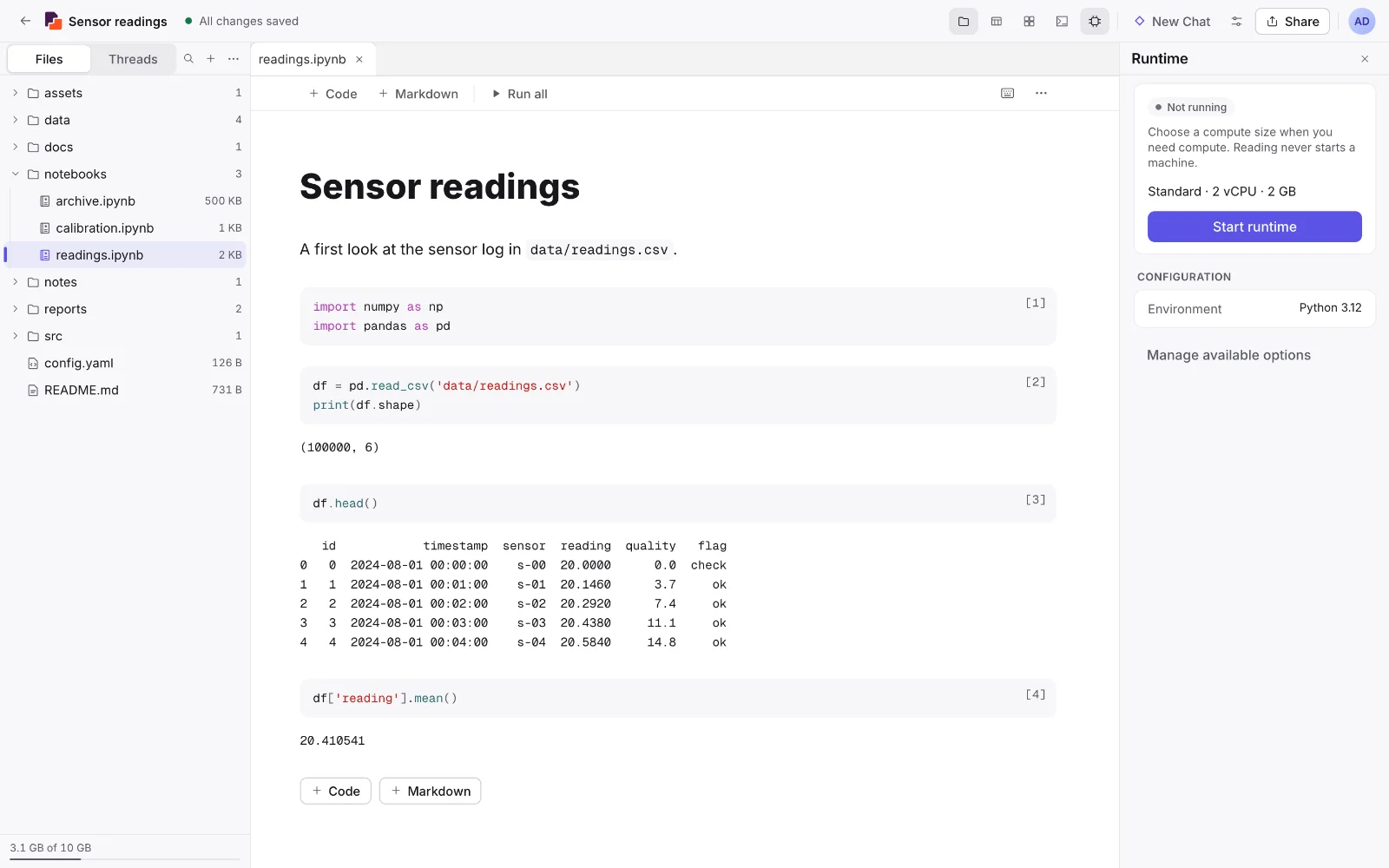
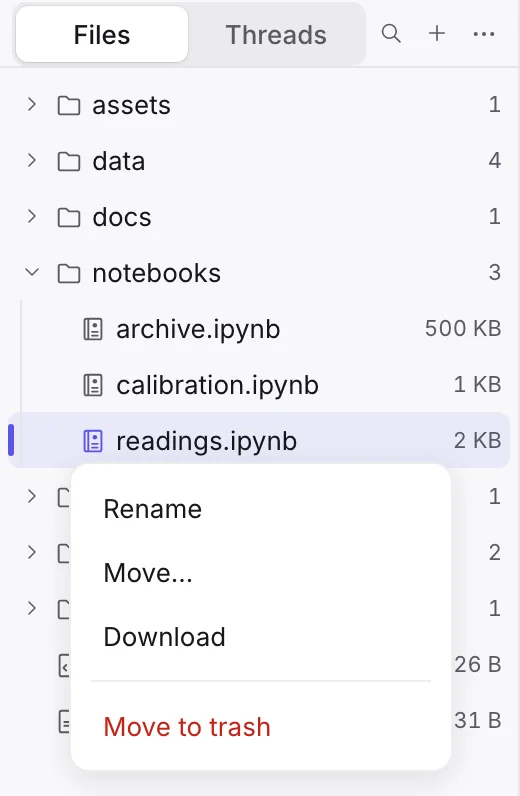
- Your files — Everything in the project. Click a file to open it, drag files in to upload, and use the ⋯ menu on a row to rename, download or delete. The switch above the list shows your chats with the agent instead.
- Tabs — Whatever you open becomes a tab. Drag a tab to the side to see two things at once.
- Notebook toolbar — Add cells, Run all, and the ⋯ menu with Clear all outputs and the .ipynb download.
- A code cell — Click to select, press Enter to type, and Shift+Enter to run.
- Saved output — Results stay with the notebook, so they are here when you open it, with nothing running.
- Runtime panel — Shows whether a runtime is running, with Start runtime and Stop, and the environment and compute size.
- Save state — One sentence that tells you your work is saved, or what is happening if it is not.
- New Chat — Start a conversation with the agent about this project.
- Share — Invite someone in your workspace to this project and choose what they can do.
- Account menu — Your usage limits, theme, Personal settings and Sign out.
Make the workspace yours
Everything opens as a tab: notebooks, files, chats with the agent, the terminal and Variables. Tabs can be arranged, so put the things you use together side by side.
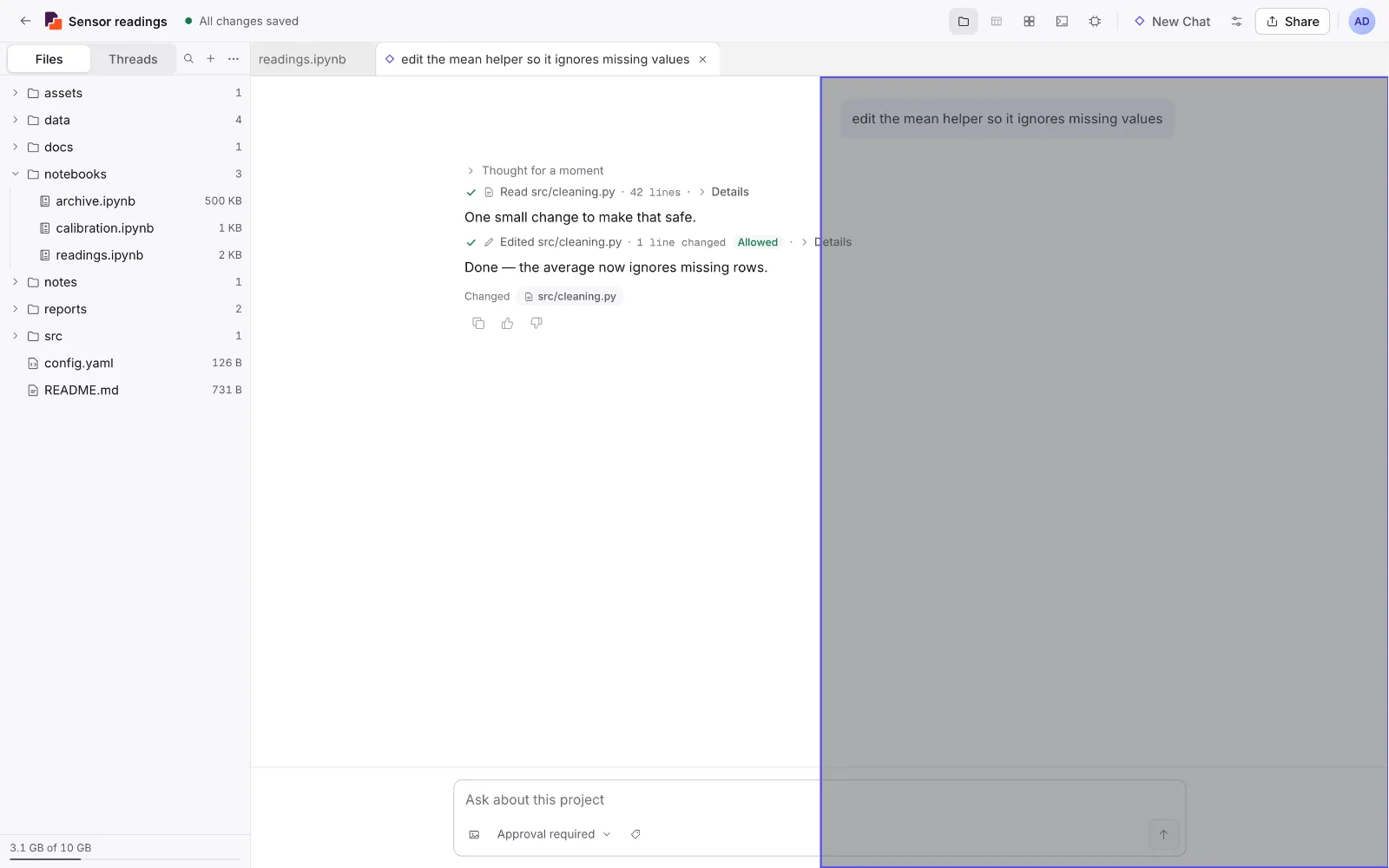
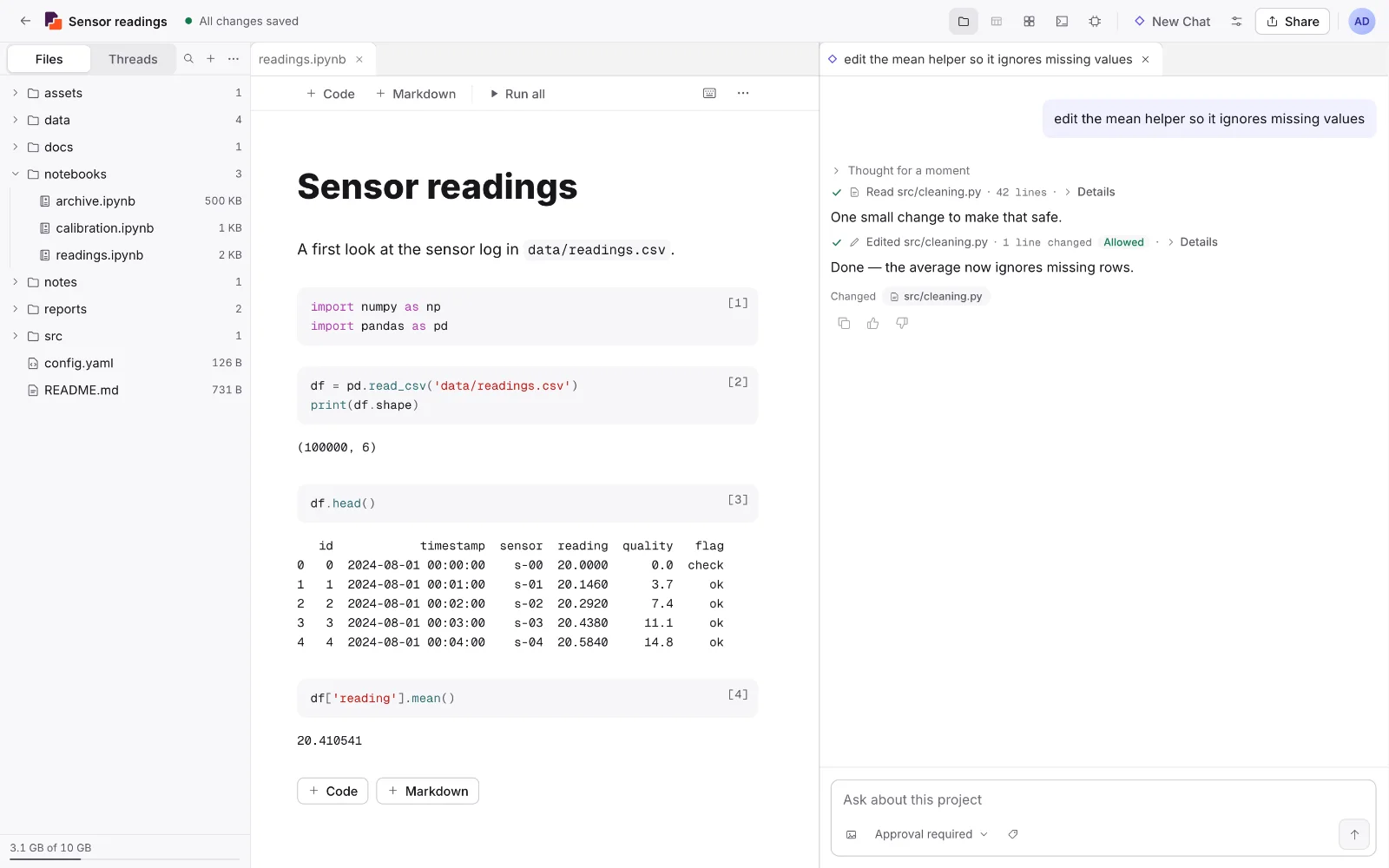
Put two things side by side
Drag a tab to an edge of the workspace and drop it. Try a chat beside your notebook, or your data beside your code.
Reorder and regroup
Drag a tab along its strip to reorder it, or onto another group to move it there.
Make room
Ctrl 0 hides the file panel, and Ctrl Alt 0 the Runtime panel. Drag the edge of the file panel to widen it.
Your layout is remembered
Each project keeps its layout in this browser. To start again, open the command palette and choose Reset layout.
Find anything fast
Ctrl K opens the command palette. Type the name of a file or an action.
Light or dark
Open the account menu behind your avatar and change Theme.
Files
The file list on the left is a real folder tree. Most things you need are a drag, a key or the ⋯ menu on a row.
| To | Do this |
|---|---|
| Upload | Drag files or whole folders onto the file list, or use Upload files… and Upload a folder…. |
| Find a file | Type in Search files above the tree. |
| Rename | Press F2, or use the row’s ⋯ menu. |
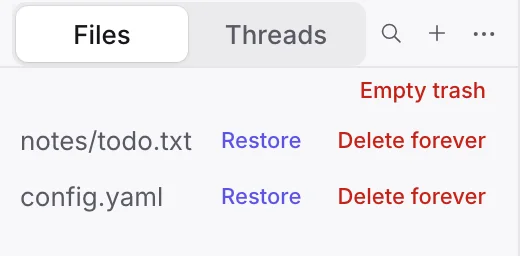
| Delete | Press Del, or choose Move to trash. Press Undo on the message that appears, or restore it later from Trash. To delete it for good, choose Delete forever on its row in Trash, or Empty trash for everything there. Both ask first and can’t be undone. |
| Download | Choose Download in the row’s ⋯ menu. In an open notebook, Ctrl S downloads it as .ipynb. |
| See files your code just wrote | Open the ⋯ menu in the file list header and choose Refresh files. |
What opens in the browser
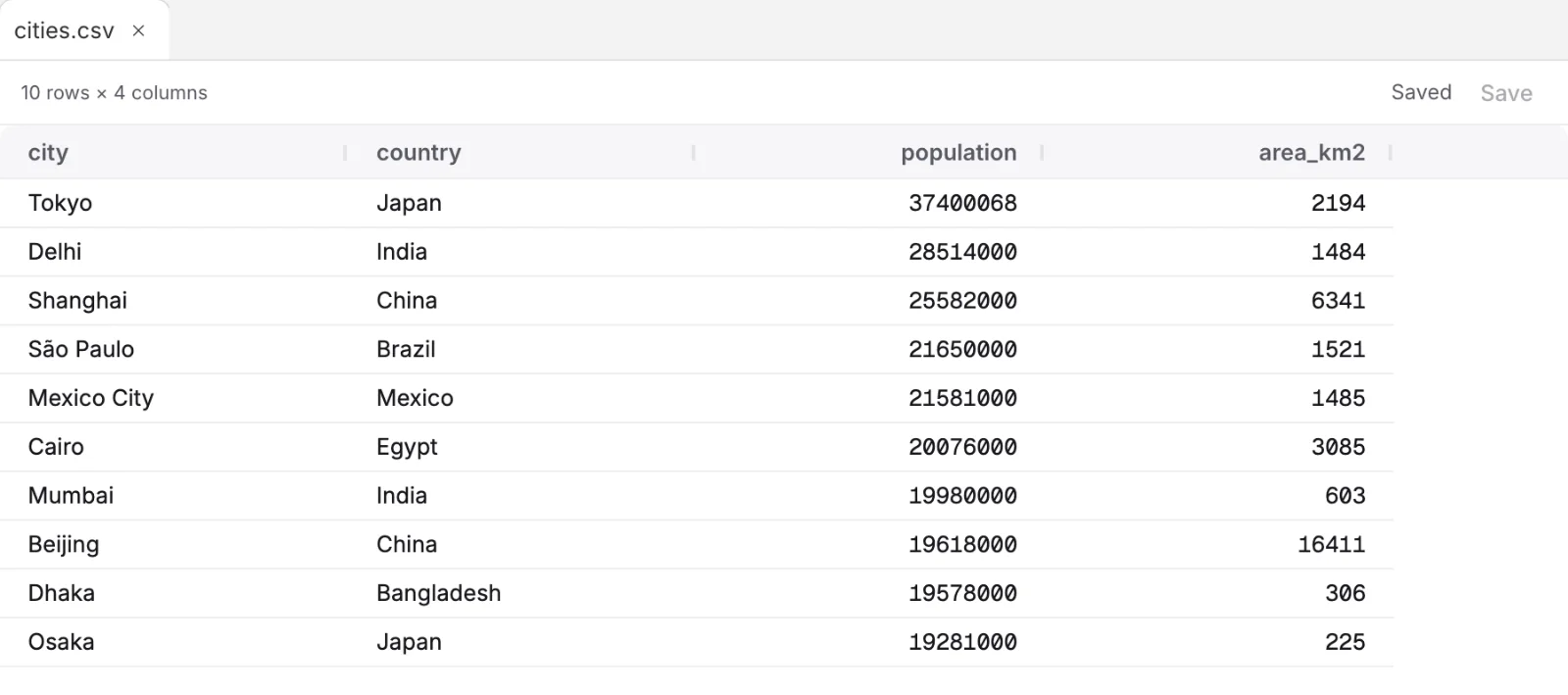
Notebooks, Markdown, CSV and TSV tables, Excel workbooks, PDFs, HTML pages, images and source files all open in a tab without starting a runtime. You can edit cell values in a .csv or .tsv; Excel workbooks are read-only. Anything else, and very large files, offer a Download file button instead.
Notebooks
A notebook is a column of cells. A code cell runs in your runtime; a Markdown cell is formatted text. Notebooks here are standard Jupyter .ipynb files, so the keys you know from Jupyter work.
Adding and changing cells
- Add a cell. Point between two cells and choose + Code or + Markdown. The same buttons sit under the last cell and in the notebook toolbar.
- Change its type. The selected cell shows its type at the top right: Python, Markdown or Raw. Click it to pick another.
- Edit Markdown. Double-click a Markdown cell to edit it. Press Shift Enter to render it again.
- Everything else. Each cell’s ⋯ menu has copy, cut, paste, duplicate, move, hide or clear output, and delete. Deleting shows Undo.
Reading the line under a cell
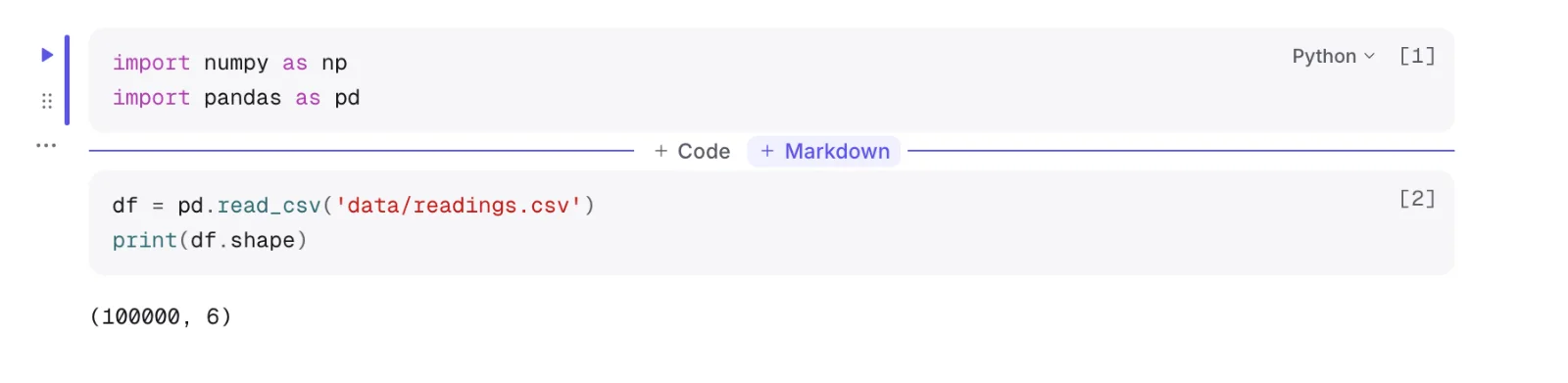
Between a cell’s code and its output is one line that tells you where that cell stands.
| You see | It means |
|---|---|
| No line | The cell has never run. |
| queued 2nd | Waiting behind another of your cells. |
| A counting timer | Running now. |
| ✓ 0.8s | Finished. The output matches the code. |
| Source changed — this output is from the previous code. | The code was edited after it ran, so the output is out of date. Press Run again. |
| stopped at 12.4s | You interrupted it. |
| The runtime stopped before this cell finished. Output up to then is kept. | The runtime stopped while the cell was running. See Your code keeps running when you leave. |
| An error, such as KeyError | It failed. Explain this error asks the agent about it. |
The notebook toolbar
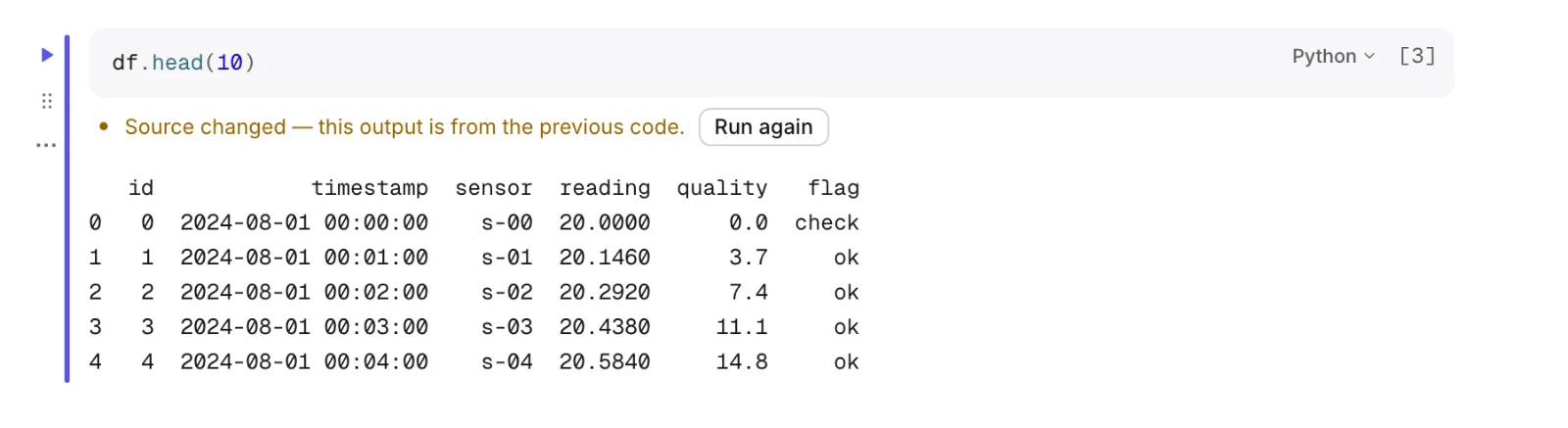
Run all runs every cell from the top. Stop appears while something is running, and Restart… while a runtime is up. The toolbar’s ⋯ menu holds Clear all outputs, run above or below the selected cell, line numbers and the .ipynb download.
Running code
You never have to start a runtime as a separate step. Press Run and Ai8 starts one, using the project’s default compute size. If the project has no default, the Runtime panel asks you to choose one first.
The Runtime panel, opened from the workspace toolbar, shows the status.
| Status | Means |
|---|---|
| Not running | No machine is attached. Reading and editing work fine. |
| Waiting for capacity | A machine has been requested and is on its way. |
| Starting | The machine is starting. This can take a moment. |
| Running | The runtime is up and working. |
| Running · idle | The runtime is up, with nothing executing. |
| Failed | The runtime did not start, or stopped unexpectedly. Start it again when you are ready. |
Your code keeps running when you leave
Pressing Run hands the cell to your runtime, not to your browser tab. Close the tab, shut the laptop or lose your connection, and the cell still finishes on the server, followed by every cell queued behind it. Output is saved as it prints. That makes a long job practical: start it, leave, and come back to the result.
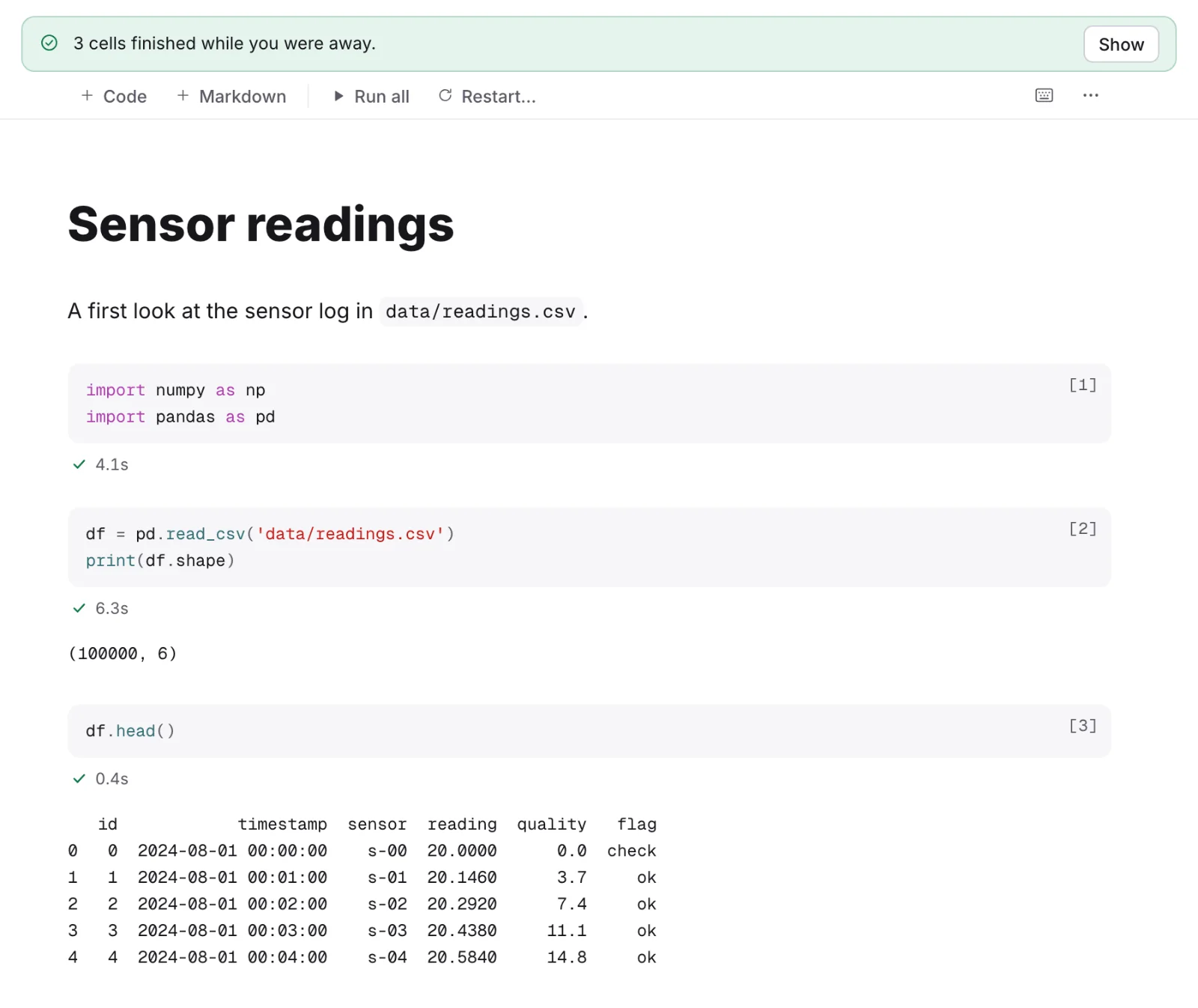
When you come back, the notebook tells you what happened.
| You see | It means |
|---|---|
| A cell with its clock still counting | It is still running. The output so far is shown, and more arrives as it prints. |
| 3 cells finished while you were away. | Those cells ran to the end with no tab open. Each shows its result and how long it took. Show takes you to the first of them. |
| The runtime stopped before this cell finished. Output up to then is kept. | The runtime stopped first: it reached its time limit, somebody stopped it, or the kernel died. Run the cell again. |
A runtime stops by itself when nothing is happening
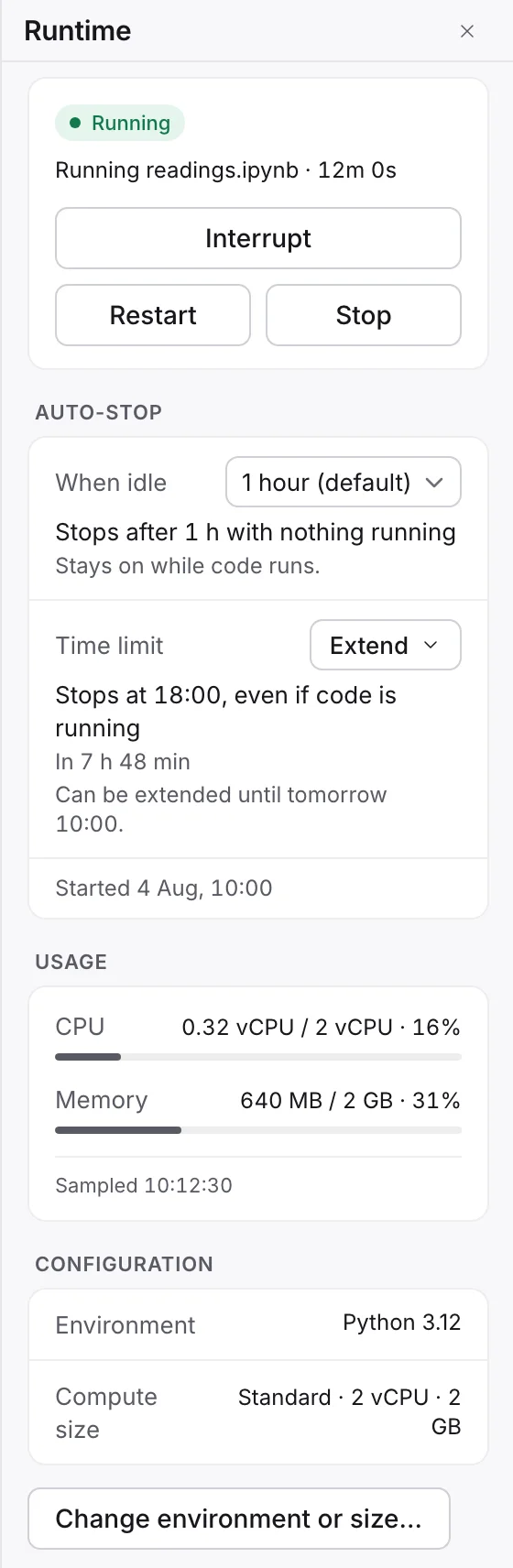
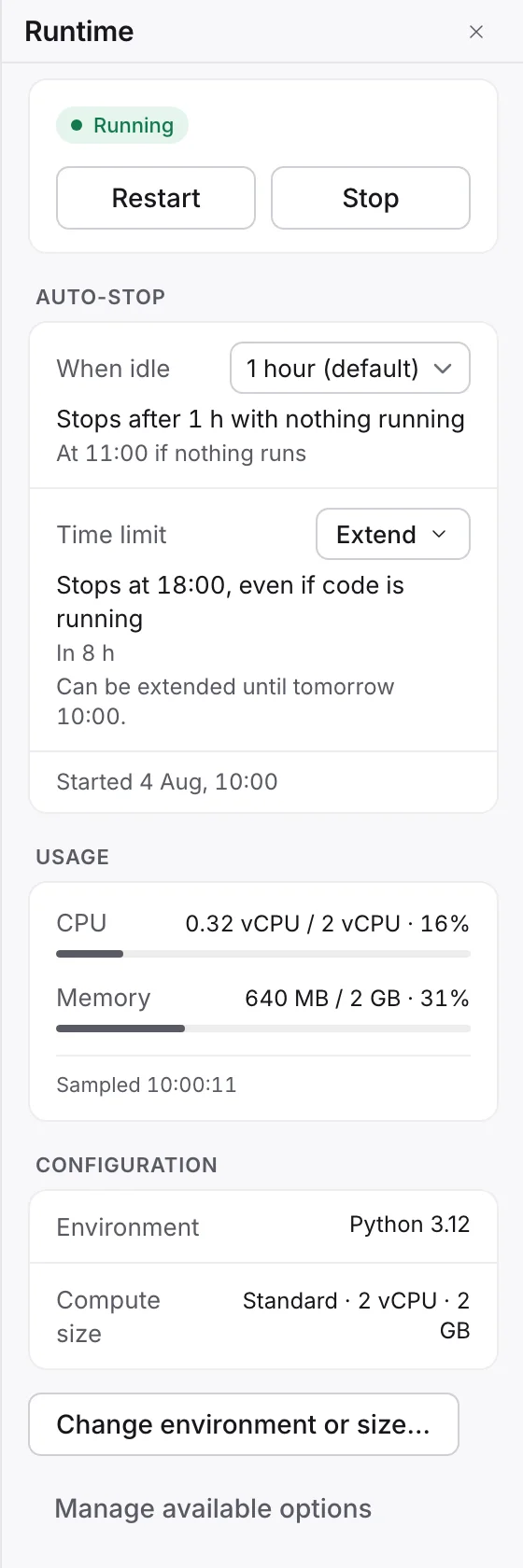
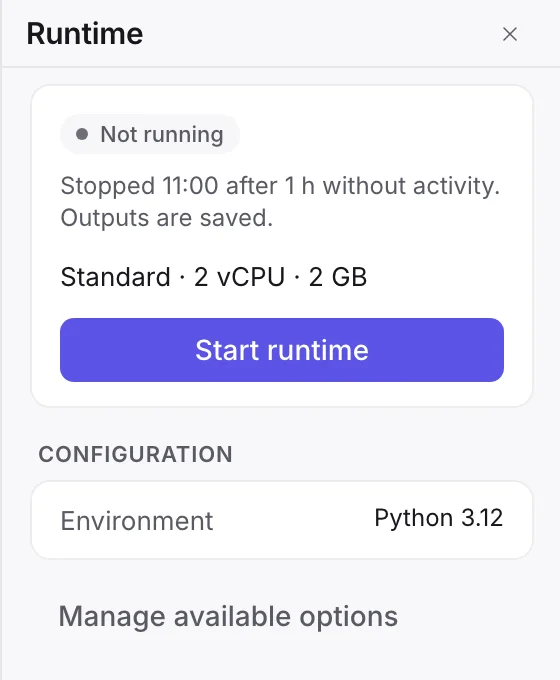
You do not have to remember to switch a runtime off. Once no code is running and you have stopped using it, an idle clock starts. When it runs out, the runtime stops and frees the machine, so a runtime you forgot about does not use up your compute limit. The Runtime panel always says where things stand, under Auto-stop.
| The Runtime panel says | It means |
|---|---|
| Running readings.ipynb · 12m 4s | Code is executing, and has been for that long. |
| When idle Stops after 1 h with nothing running Stays on while code runs. | Code is running, so the idle clock is not counting. The runtime stays on until the code finishes, whether or not you are there. |
| When idle Stops after 1 h with nothing running At 14:52 if nothing runs | Nothing is running. Run something, or do something in the runtime, before then and the clock starts again. |
| Time limit Stops at 22:10, even if code is running In 7 h 18 min | The runtime stops at that time whatever it is doing. This is the one limit that cuts a running job short, and it is shown while code runs too. |
| Stopped 14:52 after 1 h without activity. Outputs are saved. | It stopped because it was idle. Press Run to start a new one. |
| Stopped 22:10 at the 8 h time limit. Outputs are saved. | The runtime reached its time limit. |
What keeps a runtime on
Code that is running, and things you do in it: running a cell, typing in a terminal, answering an input prompt, moving a widget, interrupting or restarting.
What does not
An open tab. Reading and editing never needed a runtime, so leaving a notebook open does not hold one, however long you leave it.
When a runtime stops, your files and saved outputs are untouched, because they never lived on it. Variables in memory are gone, so run the cells again when you need them.
Change when it stops
A runtime has two limits, both under Auto-stop in the Runtime panel. They start at the values of your compute size. While the runtime is running you can change either one, and nothing restarts.
When idle
How long the runtime waits with nothing running before it stops. Choose a shorter or a longer time from the list beside When idle. This limit never stops code that is running.
Time limit
The time the runtime stops whatever it is doing, running code included. If a job needs longer, press Extend beside Time limit and choose Extend 1 hour, 2 hours, 4 hours or Extend to the maximum. Each choice shows the new stop time. Back to the default undoes an extension.
Your workspace sets the longest a runtime may run. Until you reach it the panel says Can be extended until and a time; once you do, it says This is the longest it can run. A longer limit asks for more compute, so it can be refused when you have reached your compute limit; making a limit shorter never is. A change lasts for that runtime only: the next one starts on your compute size’s values again.
Interrupt, restart, stop
Interrupt
Stops the cell that is running. Your variables stay.
Restart
Clears the kernel’s memory. Variables are lost; your notebook and its outputs stay.
Stop
Releases the machine at once. Do this when you finish, to save your compute limit without waiting for the idle clock.
Environment and compute size
Environment chooses the software, such as Python or R and their packages. Compute size chooses CPU and memory. You pick from what your workspace has made available: Change environment or size… in the Runtime panel, or Project settings. For an assignment, your instructor has already chosen.
Terminal and Variables
Open a terminal gives you a shell on the same machine and the same files as your notebook. The Variables tab lists what a Python kernel is holding, and opens dataframes as a table.
The agent
The agent is an AI assistant that works inside your project, not in a separate chat window. It reads your files, explains what it finds, writes and edits notebook cells, runs code on your kernel and can search the web. You stay in charge: it asks before each change.
For learning
Ask why a cell fails, or press Explain this error under the error. Ask it to explain a method using your own data, to walk through code line by line, or to check your reasoning.
For getting work done
Ask it to clean a dataset, draw a plot, tidy a notebook or track down a bug. For a longer job it plans the steps, works through them, runs the code and fixes what breaks, showing each step as it goes.
It reads what is in the project: notebooks, code and data files, and PDF, Word, PowerPoint and Excel documents. To start:
Press New Chat in the toolbar. The chat opens as a tab beside your notebook.
Ask in plain words, for example “Why does cell 4 fail?” or “Plot the median reading by sensor”. There is nothing to attach: the agent reads the project itself. A new chat suggests a few questions from what you have open; pressing one writes it into the box for you to send. To say exactly which file or cell you mean, type @ and pick it.
Watch the quiet lines in its answer, such as Read readings.ipynb. Each one shows what it looked at, and Details shows exactly what.
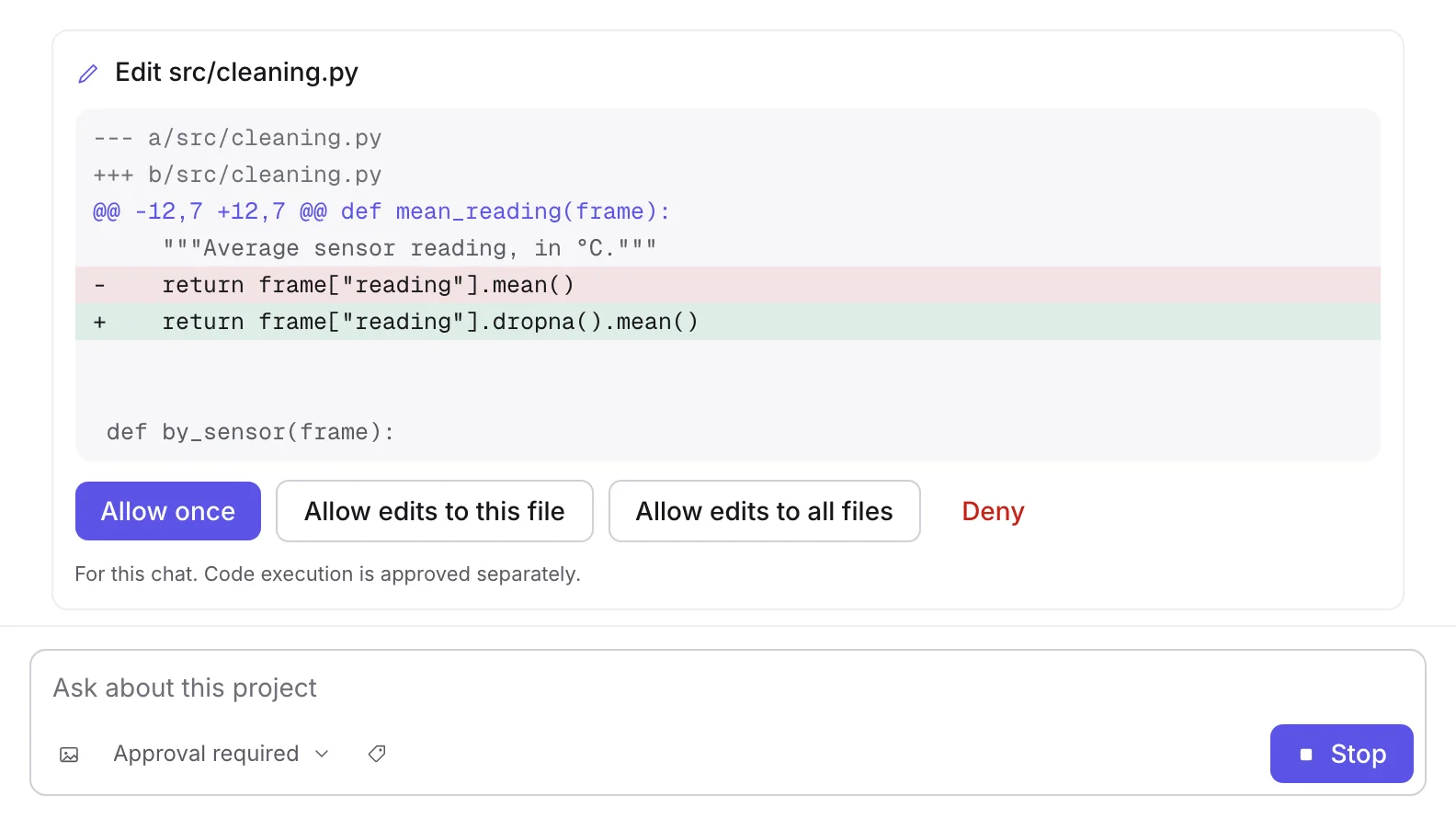
When it wants to change or run something, answer the approval card.
Answering an approval card
| Choice | What it allows |
|---|---|
| Allow once | Only this change. |
| Allow edits to this file | Edits to this file for the rest of this chat. |
| Allow edits to all files | All file edits in this chat. Running code is still asked for separately. |
| Deny | The action does not run, and the agent is told you declined. |
Permissions you have given appear above the conversation with Revoke on each. A card nobody answers expires after five minutes.
Approval required or Auto
Every new chat starts in Approval required. Switching the control beside the message box to Auto lets tools run without asking in that chat, including running code and starting a runtime. Your access rules and limits still apply, and Stop always ends the turn.
Suggestions as you type
Pause while typing in a code cell and a grey suggestion may appear. Press Tab to accept it or Esc to dismiss it. Suggestions count toward your assistant limit. Turn them off under Personal settings, Preferences, Inline code completion.
Who can read your chats
Chats in your own projects are private to you. Course staff cannot read them, and neither can workspace admins.
When the agent is off
The agent is off by default for coursework; your instructor switches it on per assignment. While you are sitting a timed assessment that has the agent off, it is off everywhere, in every project, until you submit. You will see Your timed exam is running. The assistant is off until you submit.
What it remembers
The agent keeps short notes between chats: notes about you, such as how you like things explained, and notes about a project, such as where its data lives. A line in the conversation says so when it saves one, showing the change, with Undo. If the chat has read a web page, it suggests the note instead and you choose whether to save it. Read, edit, restore or delete them all under Personal settings, Memory; a project’s notes sit beside its files. Notes about you are visible to nobody else, and a conversation can be started as one that is not remembered.
LLM API access
Beside the agent you chat with, your own code can call a language model, with any model your workspace lists. There is nothing to set up and no key to copy. If your plan includes the LLM API, there are two ways to use it from a runtime: the ai8 package in Python, or a plain HTTP endpoint from anything else.
The ai8 package
ai8 is Ai8’s own Python package. It is built into the platform’s runtime images, from version 0.1.2 on, so there is nothing to install: in a notebook with a runtime running, import it and ask.
import ai8

reply = ai8.llm.chat("In one sentence, what is a p-value?", model="anthropic/claude-haiku-5.5")
print(reply.text)
print(reply.credits)  # what this request cost
The model is always named. To see the answer as it is written, use stream; to send a picture, add images.
stream = ai8.llm.stream("Write a haiku about pandas, the library.", model="anthropic/claude-haiku-5.5")
for text in stream:
    print(text, end="", flush=True)
print(stream.reply.credits)

reply = ai8.llm.chat("What does this chart show?", model="google/gemini-3.8-flash", images=["chart.png"])
Two more calls answer the questions you will have next. Both show as a small table in a notebook.
ai8.llm.models()   # the models you can name, with their prices in credits
ai8.llm.usage()    # how much of your allowance you have used, and when it resets
When a request is refused, the package raises an error that says why in a sentence. Three are worth catching by name:
import time
from ai8.llm import AllowanceExhausted, NotIncluded, RateLimited

try:
    reply = ai8.llm.chat(prompt, model="anthropic/claude-haiku-5.5", max_tokens=300)
except RateLimited as wait:         # too many requests at once
    time.sleep(wait.retry_after or 5)
except AllowanceExhausted as full:  # your allowance cannot cover this request
    print(full.message)
except NotIncluded:                 # your plan does not include the LLM API
    print("Ask your workspace admin.")
If you use LangChain or the OpenAI SDK, install the library and ask the package for one that is already connected: ai8.llm.langchain("anthropic/claude-sonnet-5.5") after pip install langchain-openai, or ai8.llm.openai() after pip install openai. On their own, with no arguments, those libraries do not find the LLM API.
import ai8 fails with ModuleNotFoundError, your environment was built on an older image: call the endpoint directly, which works there too, and ask your instructor or workspace admin to have the environment rebuilt.Calling the endpoint directly
Everything the package does is an HTTP request you can make yourself. Every runtime starts with two environment variables set: AI8_LLM_BASE_URL, the address, and AI8_LLM_API_KEY, the runtime’s own key, sent as a bearer token.
import os, requests

r = requests.post(f"{os.environ['AI8_LLM_BASE_URL']}/chat/completions",
    headers={"Authorization": f"Bearer {os.environ['AI8_LLM_API_KEY']}"},
    json={"model": "openai/gpt-5.4-mini", "messages": [{"role": "user", "content": "Hello"}]})
print(r.json()["choices"][0]["message"]["content"])
curl -s "$AI8_LLM_BASE_URL/chat/completions" \
-H "Authorization: Bearer $AI8_LLM_API_KEY" \
-H "Content-Type: application/json" \
-d '{"model": "openai/gpt-5.4-mini", "messages": [{"role": "user", "content": "Hello"}]}'The address is http://llm.ai8.internal/v1. It is http, not https, on purpose, and it works only from inside a runtime: from your laptop it goes nowhere, and the key belongs to a runtime that has stopped. The address and the names of the two variables, ready to copy, are under Personal settings, LLM API, with an example for the package, plain HTTP, curl, LangChain, the OpenAI SDK and JavaScript. The key itself is shown nowhere: it belongs to the runtime.
| Request | What you get |
|---|---|
POST /chat/completions | A reply from the model, in the same shape as OpenAI’s chat completions. Send "stream": true to receive it as it is written. |
GET /models | The models your workspace offers, with their prices in credits. |
GET /usage | Your allowance: the limit, what you have used and what is left, and when it resets. |
A request needs model and messages. The usual fields work as they do elsewhere: max_tokens, temperature, tools, response_format, stop, seed, and images as input. A streamed reply arrives as lines that begin data: , ends with data: [DONE], and its last piece says what the request cost. Every reply carries usage.credits, the credits that request was charged.
When a request is refused, the reply says why, with a status and a short code your code can check:
| Status | Code | It means |
|---|---|---|
| 401 | runtime_ended | The runtime the key belonged to has stopped. Start it again. |
| 403 | not_included | Your plan does not include the LLM API. Ask your workspace admin. |
| 403 | exam_lockdown | You are sitting a timed assessment that has the agent off. |
| 404 | model_not_found | The model is not offered here. List the models. |
| 400 | invalid_request_error | Something in the request is wrong. The message names it. |
| 429 | insufficient_quota | Your allowance cannot cover the request, has not started, or has expired. |
| 429 | rate_limit_exceeded | Too many requests at once. The reply says how long to wait. |
| 502, 503, 504 | The model provider or the platform had a problem. Try again. |
Models and prices
ai8.llm.models(), or GET /models, returns the models your workspace has turned on, with each one’s context length, what it accepts as input, and its prices in credits per million tokens, input and output separately. The same table is under Personal settings, LLM API, Models, with a copy control for the id. Model ids carry their vendor, such as anthropic/claude-haiku-5.5 or google/gemini-3.8-flash. A model that is not listed answers 404 model not found.
Your allowance
The LLM API is included by your plan. If your plan includes it, the account menu behind your avatar shows an LLM API row under Usage limits, with a percentage and a date, like the other limits. If it does not, your code gets The LLM API is not included in your plan. Ask your workspace admin. Each reply says what that request cost, as reply.credits in the package and usage.credits from the endpoint, and Personal settings, LLM API lists your recent requests. When a request would not fit in what is left, it is refused before any model is called, and the message says how many credits it could use and how many are left: lower max_tokens or choose a cheaper model. A request is charged what it really cost, which is usually much less than was set aside for it and now and then a little more. Stopping a cell does not stop the model: a request you interrupt is still charged for what the model produced.
Sharing
Share a project
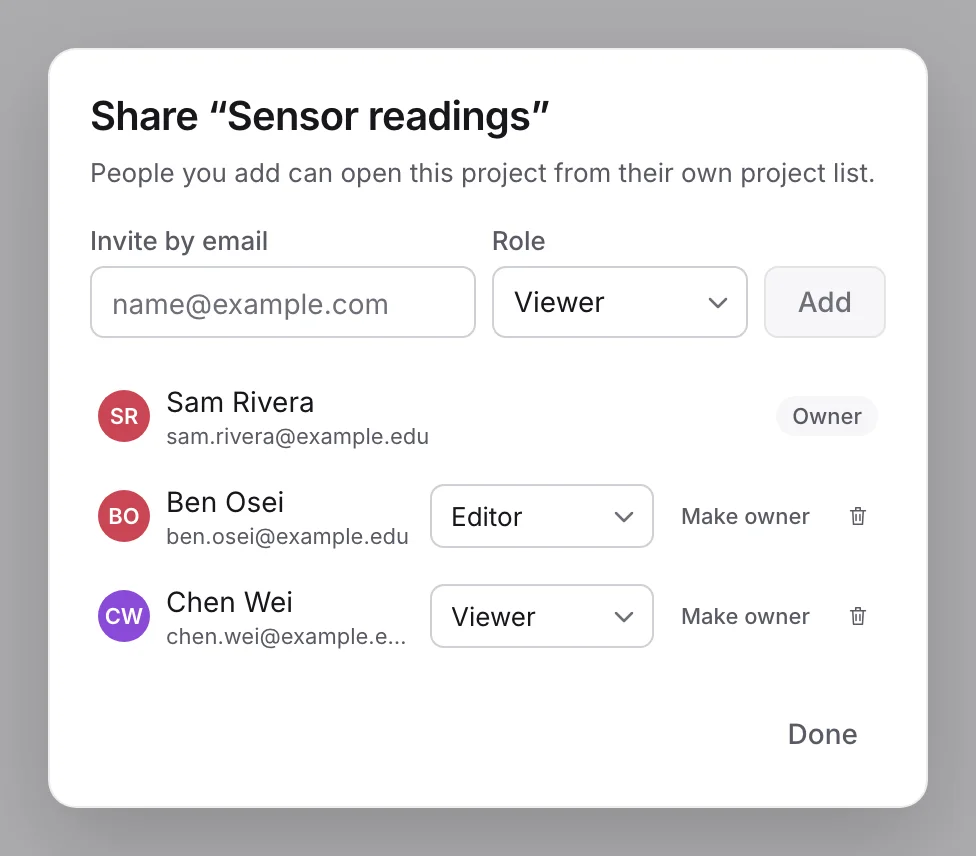
Press Share, enter the email address of someone in your workspace, choose a role and press Add. The project then appears in their own project list.
| Role | Can |
|---|---|
| Owner | Everything, including sharing and deleting the project. Make owner hands it to another member. |
| Editor | Edit files, run code and use the agent. |
| Viewer | Read and download. Editing and running are off. |
Working in the same notebook
One person edits a notebook at a time. You can see who else is there. If someone else is editing, press Request write access; they press Hand over.
Your own browser tabs share editing access: open the same notebook in several tabs and edit in any of them, with changes appearing live in the others. You do not need to request access from yourself. Handing over to another person makes all your tabs read-only together.
Your courses
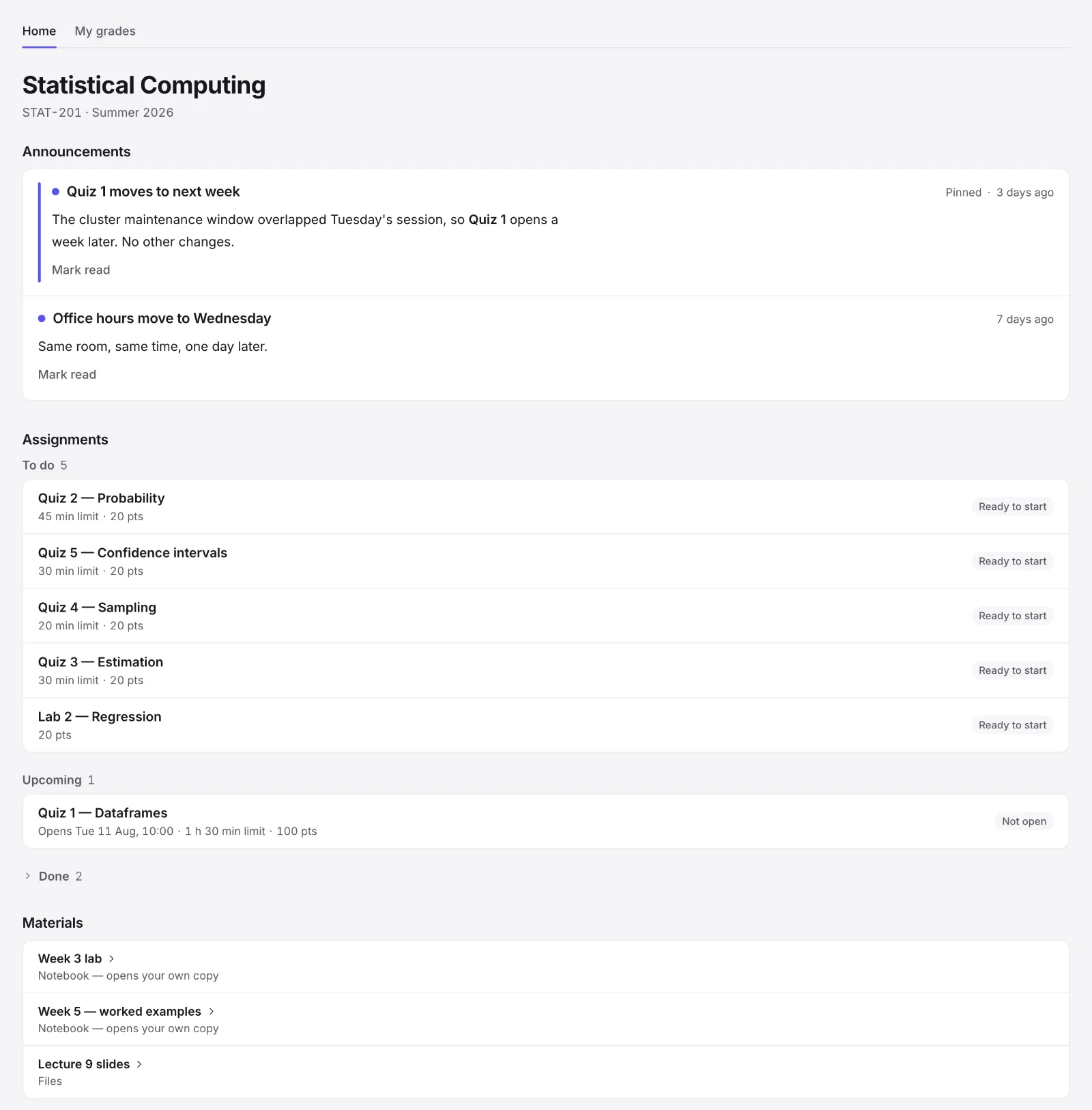
If you are enrolled in a course, Home opens with a Courses row. Each course shows its code and name, how many announcements you have not read, and the next thing due.
Inside a course, assignments are grouped by where they stand for you: In progress, To do, Upcoming, Missed and Done. Each row shows its status on the right.
Inside a course
Home
Announcements, assignments with their status, and materials your instructor has shared.
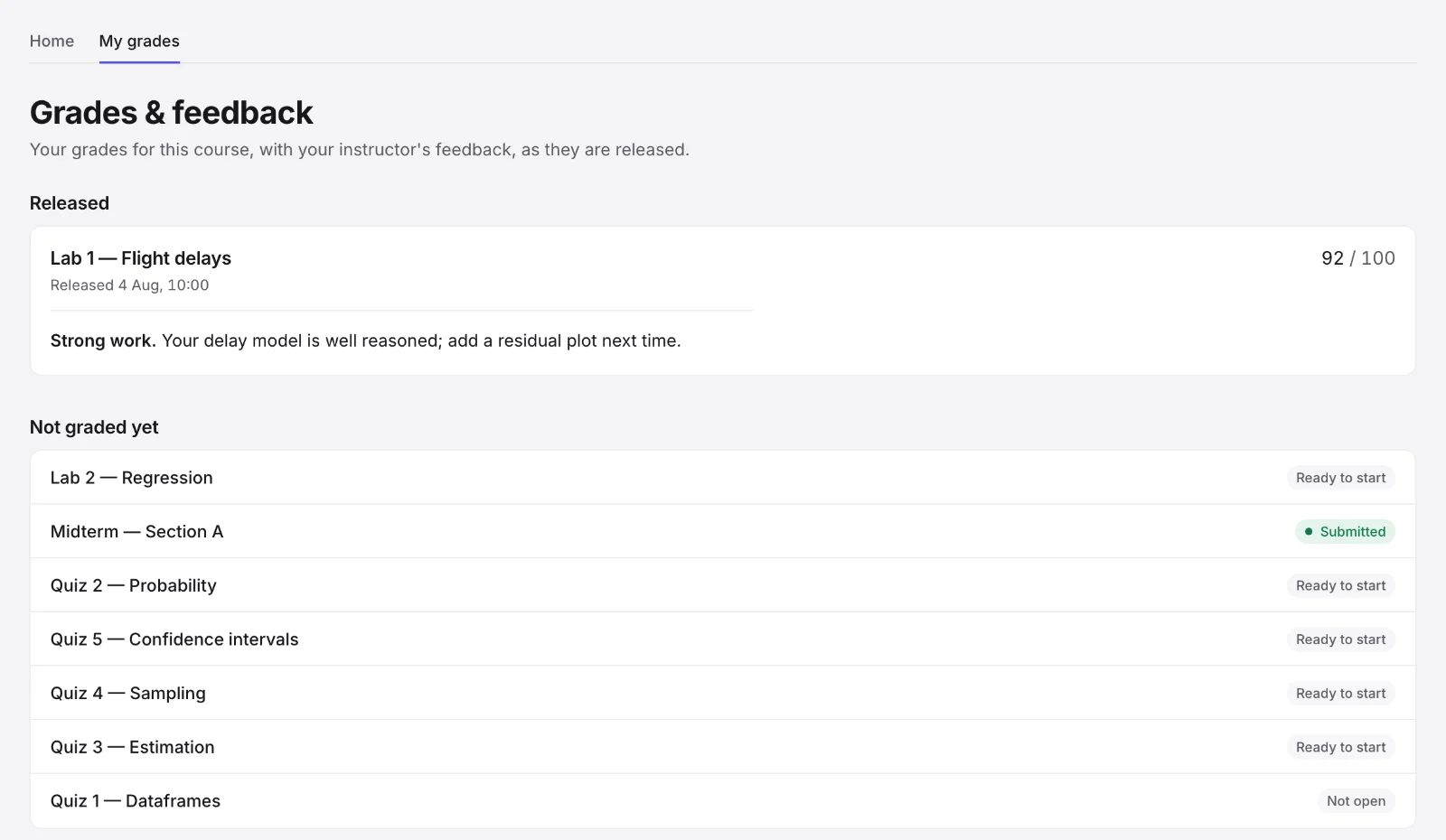
My grades
Headed Grades & feedback. Released grades with feedback first, then everything not graded yet.
What the status words mean
| Status | Means |
|---|---|
| Not open | You cannot start yet. The brief says when it opens. |
| Ready to start | Open, and you have not begun an attempt. Open it to read the brief; your timer starts only when you begin the attempt. |
| In progress | You started and have not submitted. |
| Submitted | Handed in. You also see this while it is being marked. |
| Missing | It closed without a submission from you. |
Grades and feedback
A grade appears only after your instructor releases it. Until then you see Submitted and nothing else. Once released, My grades shows the score and your instructor's feedback. Long feedback opens folded; Show more reads the rest. If your instructor archives a piece of work, such as a practice quiz they will not mark, it leaves the course page and My grades, and a project you made for it stays in your projects.
Materials
Materials are projects or files your instructor hands out. You get your own copy. If your instructor updates a material later, new files arrive in your copy, and anything you edited is kept.
Assignments and timed assessments
Assignments, quizzes and exams all work the same way: read the brief, start, work in your own copy, submit, keep the receipt. Try the whole flow here before you do it for real.
Automatic individual and group coursework
For Coursework · automatic at the deadline, work in the assessment's project until its deadline. There is no Submit step. Your instructor assigns teams or lets you create a team and invite classmates; each person can join one team per assessment.
Choose a Project name before starting. Until the deadline, use Rename project on the coursework page or Rename… in Home. Team and assessment names stay separate. Starting files come from a template, an empty project, or an assessment copy of an existing project. The person who starts a shared runtime pays for its compute. Approved observers can read saved files and outputs without becoming team members.
New writes close at the deadline. The receipt contains saved files and outputs; it does not wait for running calculations or include edits still only on an offline device. Preparing submission means the receipt is being made, not that the deadline moved.
If your instructor allows recovery, import offline work into a separate personal project and choose Attach recovery work on the receipt. This shares a saved copy of all that project's files with the team and course staff. Its received time stays separate from the original receipt, and the instructor decides whether to consider it.
The steps below describe assessments where students submit an attempt.
1. Read the brief
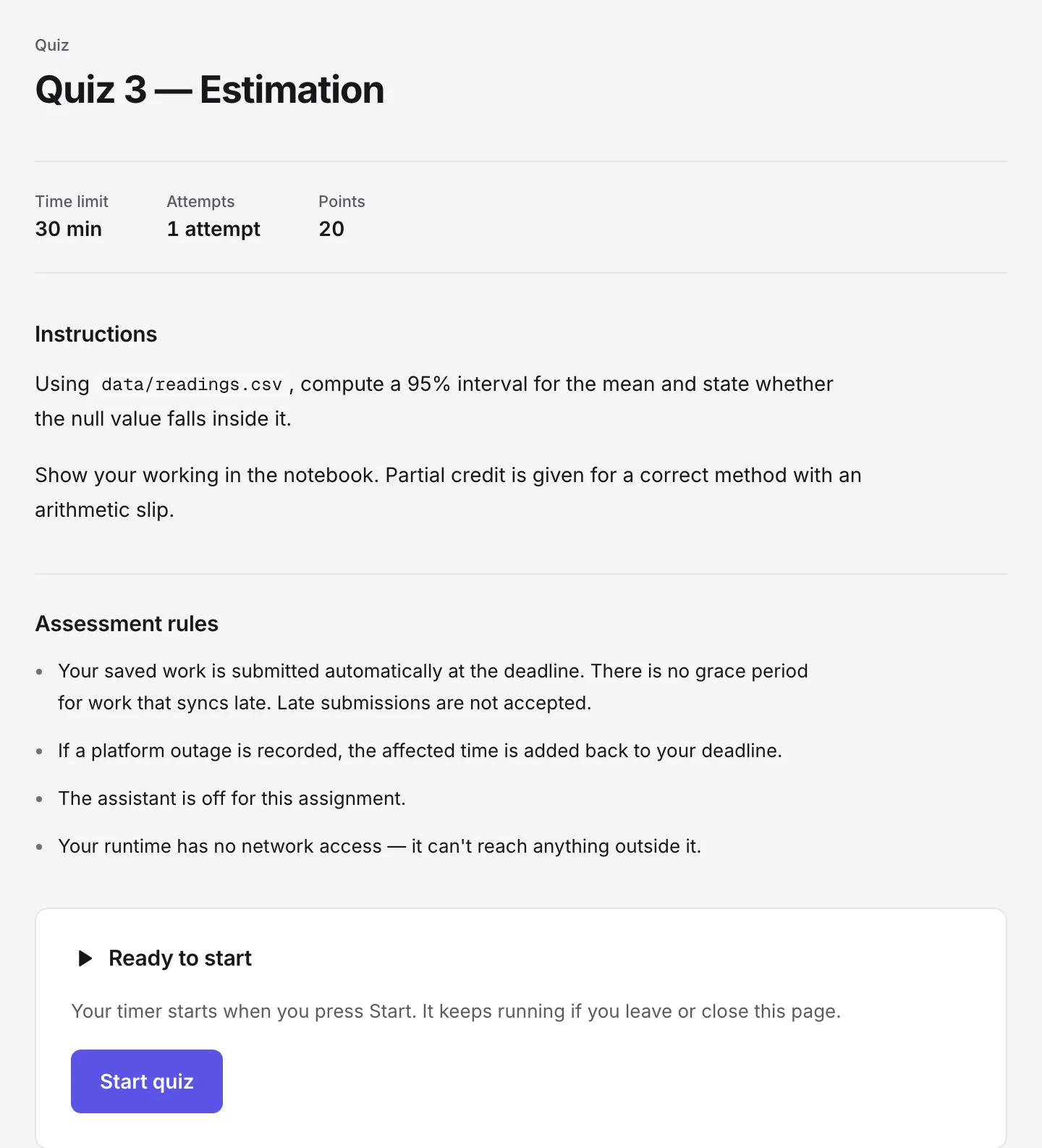
Opening an assessment does not start it. The brief shows Time limit, Attempts and Points; assignments and exams also show Due. Quizzes omit the due-date summary on the course page and brief. The brief also shows the instructions and rules for this piece of work. If you have been given extra time, the course page and brief both show your adjusted limit, and the brief says Includes your extra time.
2. Start
When the assessment is available, Ready to start explains what starting does. Press Start quiz, Start exam or Start assignment to begin. Your timer keeps running if you leave or close the page. Before opening time, the panel says Not open yet and gives the opening time. In the last minute it says Opens in less than a minute.; it checks availability before offering Start.
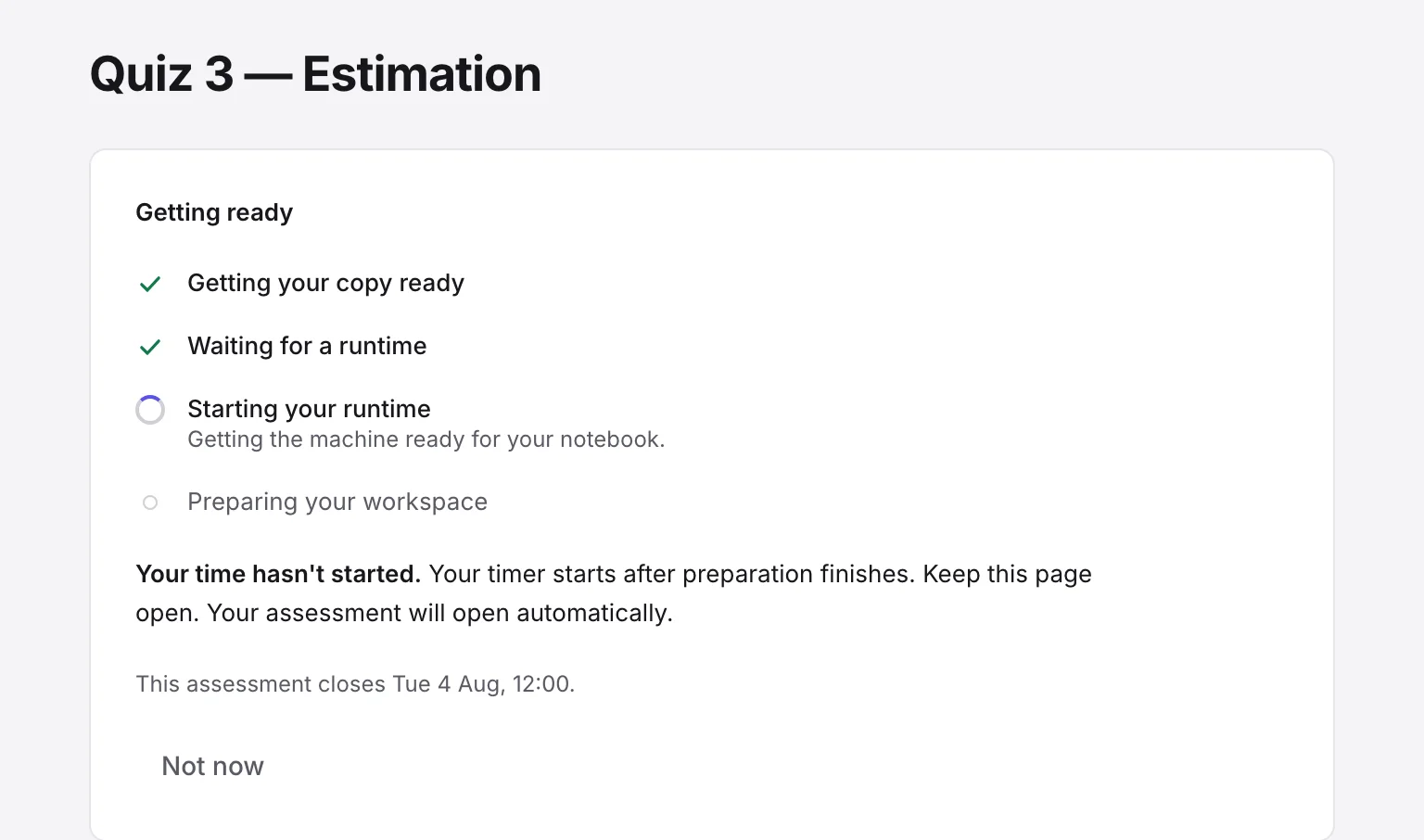
Some timed work starts your compute first. You see Getting ready and Your time hasn’t started, with each step ticked off as it finishes, from Getting your copy ready to Preparing your workspace; keep the page open and it carries on by itself. If every machine is busy it waits in line for you. If your compute cannot start, the page says why and offers Try again or Start without a runtime. Your time still has not started.
3. Do the work
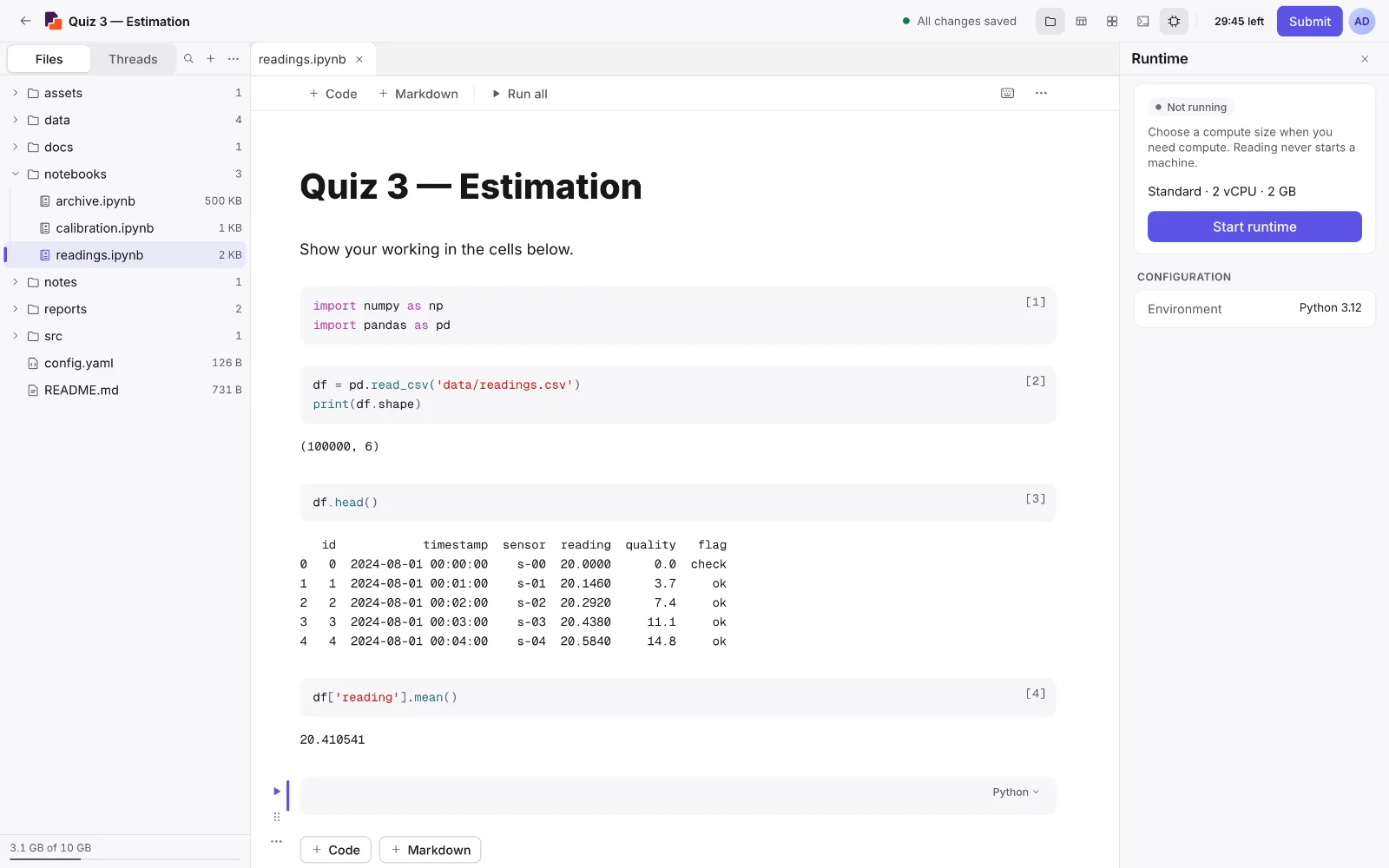
You work in the normal workspace, with a countdown and Submit at the top. If your browser crashes or you close the tab, reopen the assessment: you are back in the same attempt and the clock is still correct.
4. Submit
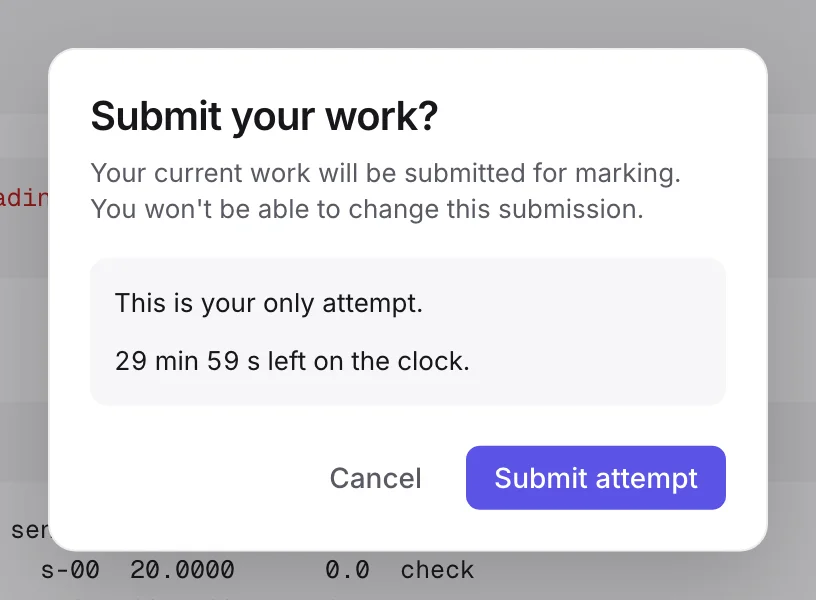
Press Submit. Submit your work? explains that your current work will be submitted for marking and cannot be changed in that submission. The review shows the attempts remaining and time left. Press Submit attempt to hand in, or Cancel to return to your work. Afterwards, View your work can still open your project; later edits do not change the submitted copy.
If you have not submitted at the deadline
At the deadline the toolbar says Waiting for submission confirmation… until the server confirms. Your receipt is marked Submitted automatically so you know that is what happened.
Under Strict, a new Submit after the deadline is refused and later syncing does not update the submitted copy. Under Merge, work received within the configured window can be included if marking has not started, and it is flagged. The instructor review shows the included work and flag, but does not yet open a separate late-work copy or show a before-and-after comparison.
5. Keep the receipt
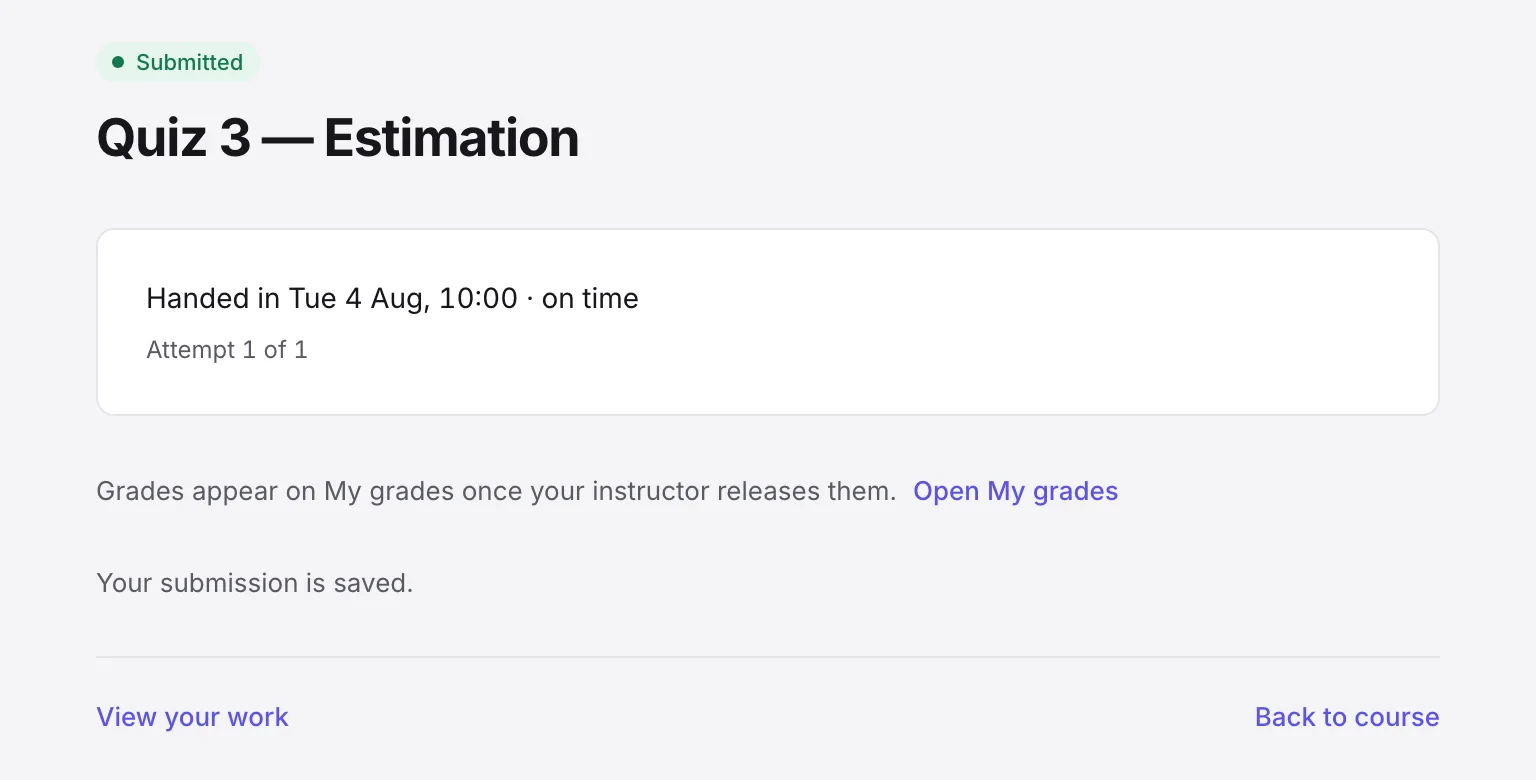
The receipt says when you handed in, whether it was on time, and which attempt it was. If you have attempts left and the work is still open, it offers Start attempt 2; your latest submission is the one that is marked. View your work opens your project.
Rules you may see on a brief
- The assistant is off for this assignment. The agent will not answer until you submit.
- Your runtime has no network access. Your code cannot reach the internet during this exam.
Every line on a brief is a rule the server actually enforces. If a rule is not listed, it does not apply.
If your connection drops
Read this before it happens. The short version: keep working. Your edits are saved on your device and sent when you are back online.
| You see | What is true |
|---|---|
| Connected | Everything is live. |
| Connection unstable — your work is saving (live features paused). | Your edits still reach the server over a fallback. |
| You’re offline. Your work is saving to this device and will sync when you reconnect. | Edits are stored in this browser and sent when you are back. |
| Access changed — syncing stopped | You no longer have access to this project or notebook, for example after a team change. Your saved local work stays on this device and is not sent. Press Retry if your access comes back, or ask whoever manages the project. |
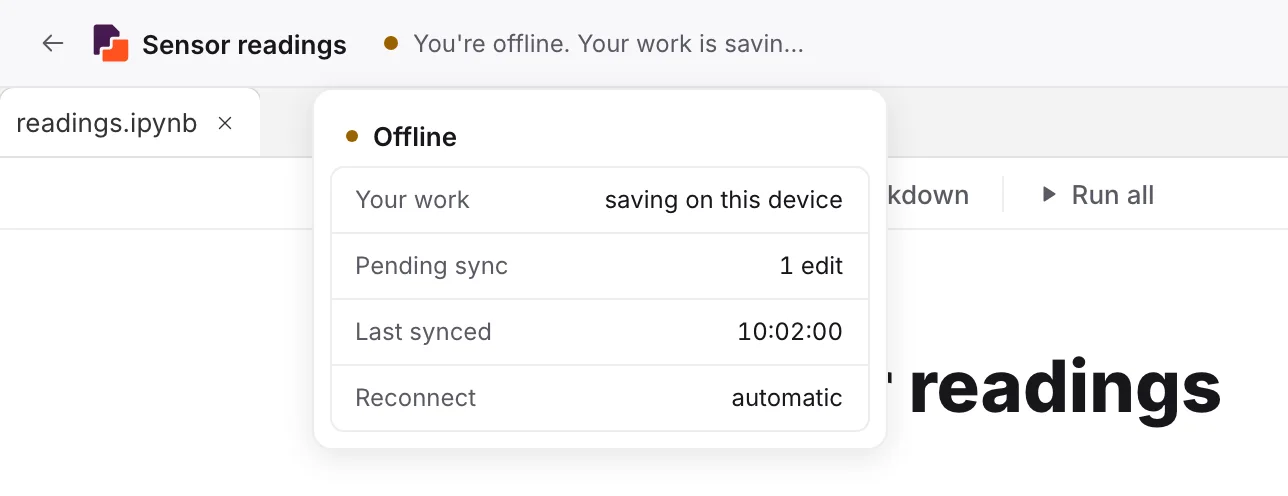
Editing keeps working
Every keystroke is saved in your browser first. Even reloading the page while offline does not lose it.
Running code needs a connection
Your code runs on a machine in the data centre. Nothing is queued: press Run again when you are back.
The countdown stays right
It follows the server’s clock, not your computer’s. Changing your system time cannot move it.
You can still press Submit
The submit is stored on your device and sent when you reconnect. It cannot hand in twice.
Usage limits
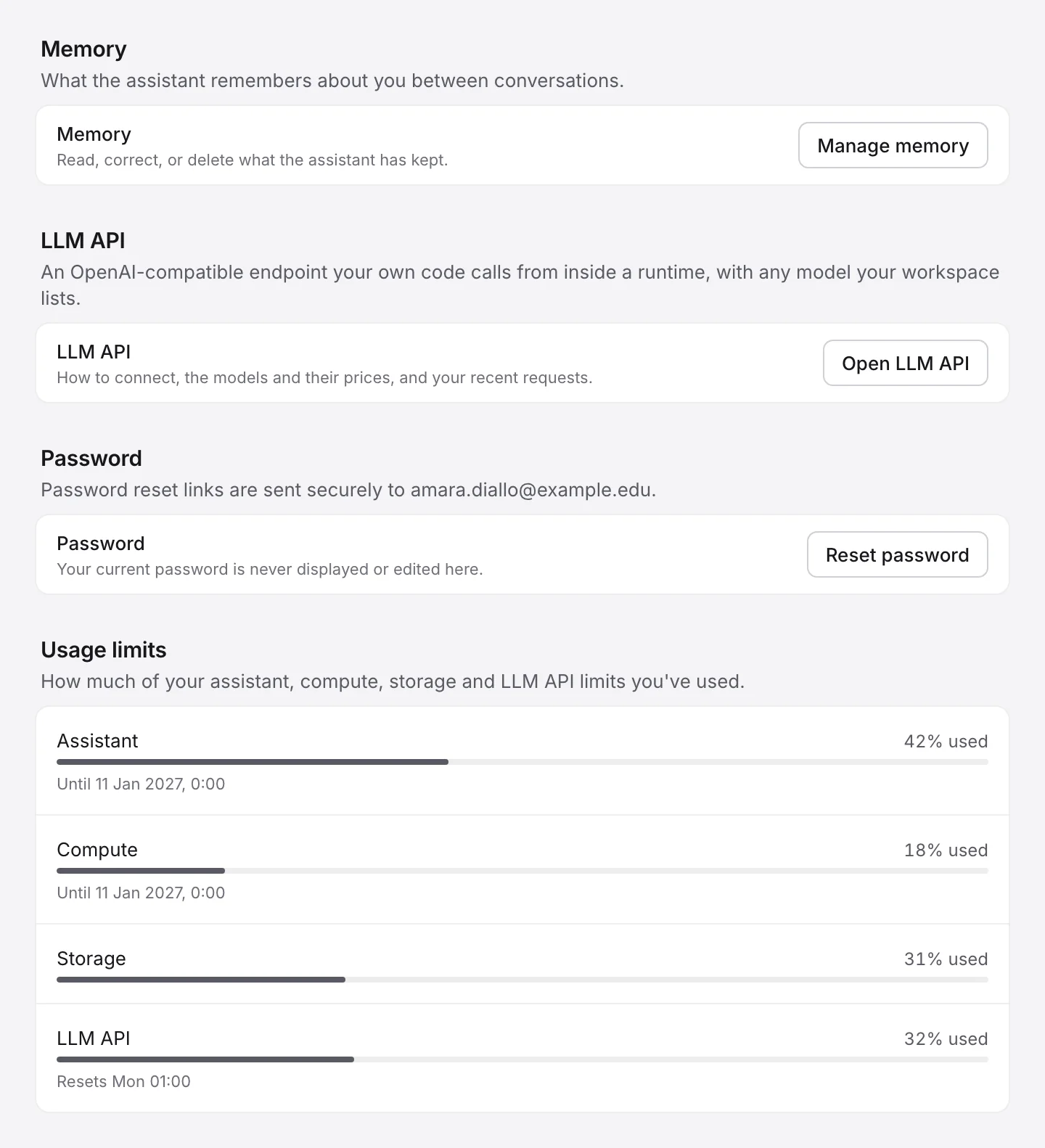
Your workspace may limit how much you use the assistant, the LLM API, compute and storage. You see each limit as a percentage, in the account menu behind your avatar under Usage limits, and in Personal settings, Usage limits. Beside a limit on the assistant, the LLM API or compute is a line that says how long the allowance lasts.
| Beside the limit | It means |
|---|---|
| Until 11 Jan 2027, 0:00 | Your allowance runs until then and does not reset before it, as with an allowance for a term. A time of 0:00 is midnight at the start of that day. What you use comes off that one total, so make it last. |
| Expired 11 Jan, 0:00 | The allowance has ended. What it covers is not available until your workspace sets a new one. |
| Starts 28 Sep, 09:00 | The allowance has not begun. What it covers is not available until then, even though you have used none of it. |
| Resets Mon 01:00 | Your workspace uses a limit that starts again every week, every month or every so many days. |
| No date | It never resets and never expires. Storage is always like this. |
Your workspace sets these, and can give you a fresh allowance at any time.
When you reach the assistant limit
The agent and inline suggestions stop until your workspace gives you a new allowance, or until the limit resets if yours does. Chats you already had stay readable.
When you reach the LLM API limit
Your code’s requests are refused until your workspace gives you a new allowance, or until the limit resets if yours does. The refusal says how many credits the request could use and how many are left. If your plan does not include the LLM API at all, every request is refused and the row is not shown.
When you reach the compute limit
New runtimes are refused. A runtime you already have keeps running until you stop it. An assessment that starts your compute for you still gets it.
When you reach the storage limit
Nobody can add files to the projects you own until you are back under it. The limit counts every project you own, including files others add to them and files in the trash. Deleting files from the trash for good frees their space, and so does deleting a whole project.
The compute and LLM API meters stop at 100%. Compute an assessment started for you past your limit comes off your next allowance. Reaching a limit is not an error and nothing is lost. If you need more, ask your workspace admin or instructor. To make compute last, stop the runtime when you finish working; one you forget stops by itself once it is idle.
Keyboard shortcuts
Press H with a cell selected to see this list inside Ai8. Keys in the first group work when a cell is selected; press Esc first if you are typing in it.
| When a cell is selected | |
|---|---|
| Run and select the next cell | Shift Enter |
| Run | Ctrl Enter |
| Run and insert a cell below | Alt Enter |
| Edit the cell | Enter |
| Select the cell above or below | ↑ ↓orK J |
| Insert a code cell above or below | A B |
| Change to code, Markdown or raw | Y M R |
| Make a Markdown heading | 1to6 |
| Copy, cut, paste below | C X V |
| Delete cell | D D |
| Undo the last cell change | Z |
| Move cell up or down | Alt ↑ ↓ |
| Merge with the cell below | Shift M |
| Hide or show output | O |
| Show or hide line numbers | Shift L |
| Interrupt the kernel | I I |
| Restart the runtime | 0 0 |
| Show keyboard shortcuts | H |
| Download .ipynb | Ctrl S |
| While typing in a cell | |
| Leave the editor | Esc |
| Complete, or indent | Tab |
| Show documentation | Shift Tab |
| Comment or uncomment lines | Ctrl / |
| Select the next match | Ctrl D |
| Split the cell at the cursor | Ctrl Shift - |
| Bold or italic, in a Markdown cell | Ctrl B I |
| Undo, redo | Ctrl Z,Ctrl Shift Z |
| In the chat's message box | |
| Send | Enter |
| New line | Shift Enter |
| Stop the answer, from an empty box | Esc |
| Bring back your last message, from an empty box | ↑ |
| Point at a file or cell | @ |
| Commands, from an empty box | / |
| Select the pointer before the caret, then remove it | Backspace Backspace |
| Open a selected pointer, then go back | EnterorSpace,Esc |
| Anywhere | |
| Command palette | Ctrl K |
| Rename the selected file | F2 |
| Move the selected file to trash | Del |
No shortcut matches that. Press H in a notebook for the full list.
Troubleshooting
Most surprises have a short answer. If yours is not here, email support.
I cannot find where to sign in
Go to app.ai8.io and bookmark it. The invitation link only creates your account, so it will not take you there a second time.
My invitation link says it no longer works
An invitation link works once, and a re-sent invitation replaces the old link. Ask whoever invited you, your instructor or workspace admin, to send a new one. If you already created your account, just sign in.
I forgot my password
On the sign-in screen press Forgot your password? and enter your email. The link expires in a couple of hours and works once. Nothing after a few minutes? Check your spam folder, then try again.
I pressed Run and nothing seems to happen
Open the Runtime panel. Starting means a machine is on its way; the first start can take a moment. If it asks for a compute size, choose one and press Start runtime. If it says you have reached a limit, see Usage limits. If you are offline, press Run again when you reconnect.
It says I have 2 runtimes running
That is the default limit on runtimes at once. Open a project you are not using, press Stop in its Runtime panel, then run again.
My runtime stopped while I was away
A runtime stops by itself once nothing is running and nobody is using it. The Runtime panel says when and why. Your outputs are saved; variables in memory are not, so run the cells again. Code that is still running keeps the runtime on, so a long job is not cut short by this. If the idle time is too short for how you work, choose a longer one beside When idle. See A runtime stops by itself.
A cell says the runtime stopped before it finished
The runtime stopped while that cell was running: it reached its time limit, somebody stopped it, or the kernel ran out of memory. Output up to that point is kept. Run the cell again. For a long job, open the Runtime panel first and press Extend beside Time limit.
My job needs longer than the time limit
In the Runtime panel, under Auto-stop, press Extend beside Time limit and choose how much longer. You can do this while the job runs. If the panel says This is the longest it can run, your workspace does not allow more: save what you need, or ask your workspace admin. See Change when it stops.
My cell stopped and the kernel restarted
The most likely cause is that your code used more memory than your compute size allows. Load less data at once, or choose a larger compute size if one is available to you.
A file my code created is not in the file list
Open the ⋯ menu in the file list header and choose Refresh files.
The notebook says “Read-only until this notebook connects”
Nothing is wrong. What you see is real; editing arrives on its own in a moment. There is nothing to press.
My output says “Source changed”
The code was edited after that output was produced. Press Run again beside it to bring the output up to date.
The agent says it is turned off
Your instructor may have it off for this assignment, or you may have a timed assessment running, which switches it off everywhere until you submit. In your own projects, the workspace may have the assistant switched off, you may have reached your assistant limit, or your allowance may not have started yet or may have expired. See Usage limits.
My terminal has gone silent
Open a new terminal. Your session and files are fine.
I cannot see my grade
Grades appear only after your instructor releases them. Until then your work shows as Submitted.
Something went wrong with a deadline, an attempt or extra time
Contact your instructor rather than support. Deadlines, extensions, attempts and extra time are theirs to see and to change.
Get help and get in touch
We want to hear from you, whether something is broken, something is unclear, or you have an idea.
Ai8 support
Something is not working, or you have a question this guide does not answer. Say what you were doing and when, and add a screenshot if you can.
support@ai8.ioTell us what is missing
If Ai8 does not do something you need, or something is harder than it should be, tell us. Suggestions from the people using it decide what we build next.
Send a suggestion