Find your way around Ai8
Step-by-step help for students and instructors, with demos you can try before you do the real thing.
Looking for Ai8 itself? Sign in at app.ai8.io and bookmark it.
I’m a student
Open your course, work in notebooks, use the agent and the LLM API, and hand in assignments and timed assessments.
- Notebooks
- Running code
- The agent
- LLM API access
- Assignments
- Going offline
I’m teaching
Set up a course, add students, create assignments, watch a live assessment, grade and release.
- Courses
- Roster
- Assignments
- Live monitor
- Grading
Using Ai8 outside a course? Start with the student guide: its workspace, notebook and agent chapters apply to everyone.
What Ai8 gives you
Ai8 is a workspace for Jupyter notebooks that runs in your browser. Three things make it more than a notebook on your laptop.
Code that keeps running when you leave
Press Run and close your laptop. Your code carries on in your runtime on the server, the output is saved as it prints, and the notebook tells you what finished while you were away. A runtime nobody is using stops by itself, so it does not use up your compute.
How runtimes workAn AI agent that works in your project
Ask in plain words. The agent reads your files, explains errors and methods, writes and edits notebook cells, and runs code, whether you are learning something or getting work done. It asks before each change.
Meet the agentLLM API access
Call large language models from your own notebooks and scripts, with no API keys to manage. If your plan includes it, every runtime you start is already set up: use Ai8’s small Python package or a plain HTTP endpoint, with any model your workspace lists. What you use counts against a limit of its own.
Call a model from your codeGet your account
Ai8 is by invitation. There is no sign-up form and no “sign in with Google”: your instructor or workspace admin invites you by email, and you choose your own password.
1. Open your invitation
Look for an email with the subject “You’ve been invited to Ai8”, or “You’ve been invited to your course on Ai8”. Open the link in it. The email says when the invitation expires.
2. Create your account
On Accept your invitation, enter a display name and a password, then press Create account. Your account uses the address the invitation was sent to, and that cannot be changed.
3. Sign in
Use one browser at a time, with as many tabs as you need. Signing in in another browser or on another machine signs out the previous browser and its tabs. Separate profiles and private windows count as another browser.
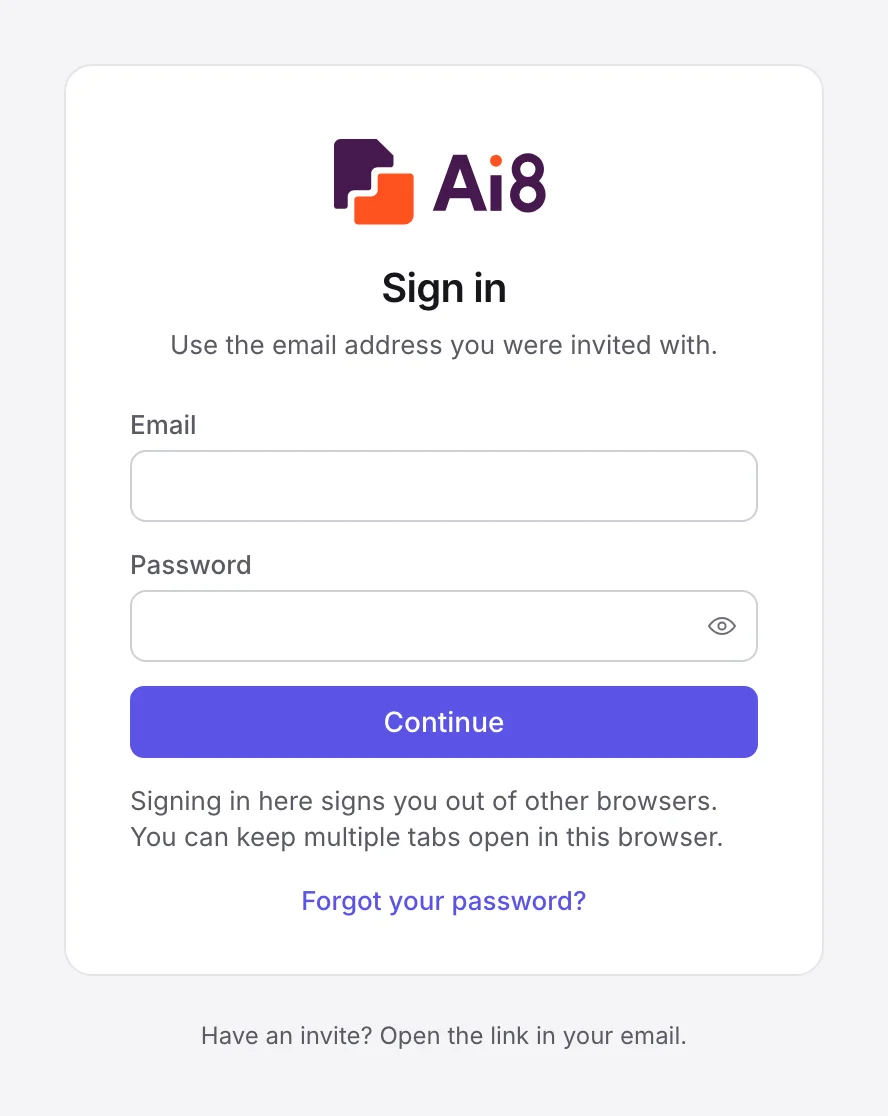
From then on, go to app.ai8.io and sign in with the email address you were invited with. Bookmark it: the invitation link will not take you there a second time.
Sign in at app.ai8.io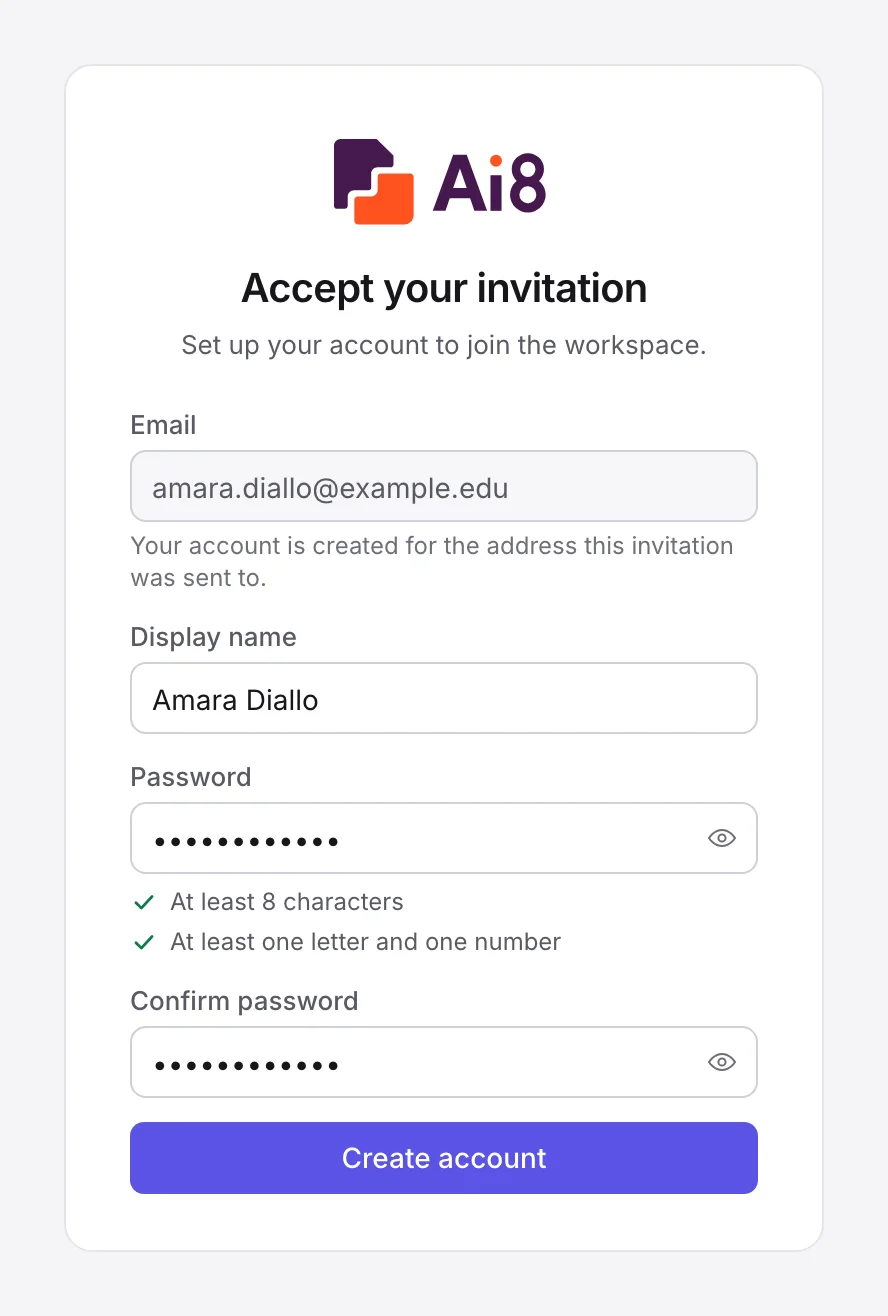
If something goes wrong
I cannot find where to sign in
Ai8 runs in your browser at app.ai8.io. Type that into the address bar and bookmark it. Searching the web for “Ai8” may not find it, and the invitation link only creates your account.
I cannot find the invitation email
Check your spam or junk folder, and make sure you are looking in the mailbox the invitation was sent to. Still nothing? Ask your instructor or workspace admin to send it again.
The link says “This invite link no longer works”
An invitation link works once. It may have expired, been used already, or been replaced by a newer invitation. If you already created your account, just sign in. Otherwise ask for a new invitation.
I forgot my password
On the sign-in screen press Forgot your password?, enter your email and press Send reset link. The link in the email expires in a couple of hours and works once. Setting a new password signs you out on every device.
I need to use a different email address
An account belongs to the address it was invited with. Ask your instructor or workspace admin to invite the other address.
A two-minute tour
This is the workspace, where you will spend most of your time. Step through the numbered stops to see what each part is for.
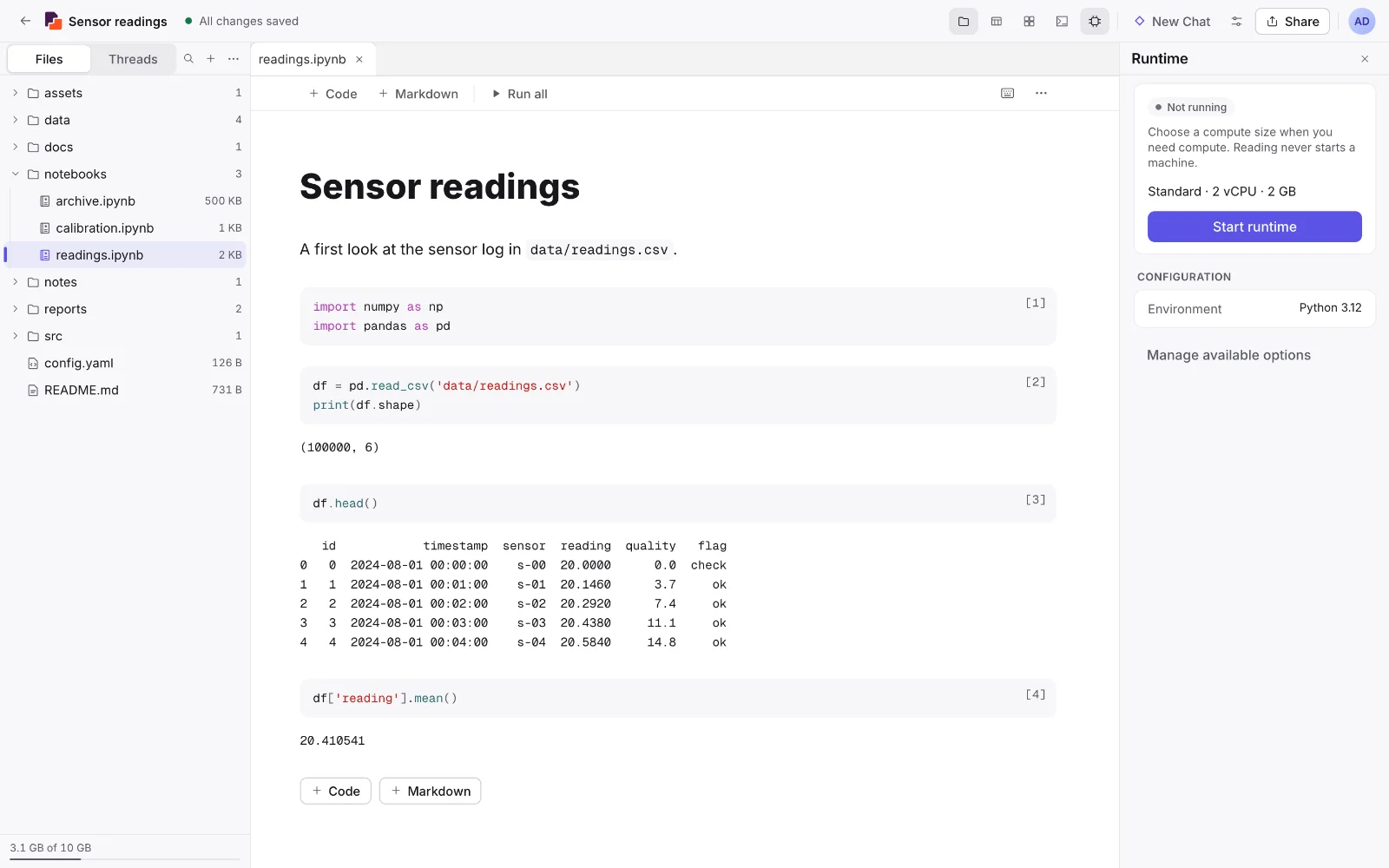
- Your files — Everything in the project. Click a file to open it, drag files in to upload, and use the ⋯ menu on a row to rename, download or delete. The switch above the list shows your chats with the agent instead.
- Tabs — Whatever you open becomes a tab. Drag a tab to the side to see two things at once.
- Notebook toolbar — Add cells, Run all, and the ⋯ menu with Clear all outputs and the .ipynb download.
- A code cell — Click to select, press Enter to type, and Shift+Enter to run.
- Saved output — Results stay with the notebook, so they are here when you open it, with nothing running.
- Runtime panel — Shows whether a runtime is running, with Start runtime and Stop, and the environment and compute size.
- Save state — One sentence that tells you your work is saved, or what is happening if it is not.
- New Chat — Start a conversation with the agent about this project.
- Share — Invite someone in your workspace to this project and choose what they can do.
- Account menu — Your usage limits, theme, Personal settings and Sign out.
Take it with you
The same guidance as printable manuals, for sharing with a class or reading offline.
Student manual
Signing in, notebooks, running code, the agent, assignments and timed assessments.
Download PDFGet help and get in touch
We want to hear from you, whether something is broken, something is unclear, or you have an idea.
Tell us what is missing
If Ai8 does not do something you need, or something is harder than it should be, tell us. Suggestions from the people using it decide what we build next.
Send a suggestionYour instructor
Deadlines, extensions, extra time, attempts, grades, and what is allowed in an assessment.
Your workspace admin
Invitations and accounts, assistant, LLM API, compute and storage limits, and which environments you can use.